Using a Custom Domain with Subphonic
Why Use a Custom Domain?
Using a custom domain for your Subphonic payment links provides significant benefits for your business and customers:
-
Build Trust and Confidence When customers make payments, they expect to interact with your brand, not a third-party domain. A custom domain like
payments.megacorp.comreinforces your brand identity and increases customer confidence during the payment process. -
Brand Consistency Maintain a consistent brand experience throughout the entire customer journey—from your website to the payment page. This consistent experience strengthens brand recognition and customer loyalty.
-
Enhanced Security Perception Customers are increasingly aware of phishing attempts and fraudulent websites. A custom domain linked to your organization demonstrates legitimacy and helps customers verify they're on the correct payment page.
-
Better Email Deliverability When sending payment links or receipts via email, using your own domain (e.g.,
DoNotReply@megacorp.com) improves email deliverability and reduces the likelihood of messages being marked as spam.
If a Subphonic customer would like to use a custom domain for platform access, this document will guide you through the required steps.
In this generic example, we will use megacorp.com.
Setup at a Glance
You make a few DNS changes once, and Subphonic issues and renews the certificates. The one record that proves you control a hostname is a CNAME, added per hostname.
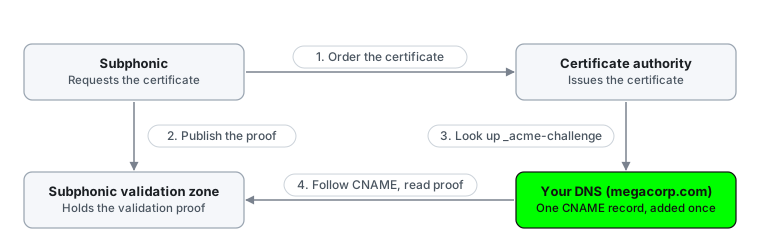
When Subphonic requests a certificate, this happens:
- Subphonic orders the certificate for your hostname from the certificate authority.
- Subphonic publishes the validation proof in its own DNS zone.
- The certificate authority looks up the
_acme-challengename under your hostname. - It finds your CNAME, follows it to the Subphonic zone, reads the proof and issues the certificate.
Your part is the following:
- Step 1 – CAA Requirements. Needed only if your domain has CAA records.
- Step 2 – CNAME DNS Updates. One record per hostname.
- Step 3 – A Record DNS Updates. Routes each hostname to the Subphonic Gateway.
- Step 4 – Email DNS Updates. Optional, for email sent from your own domain.
Step 1 – CAA Requirements
In this example, the megacorp.com domain has a CAA record specifying globalsign.com as the only certificate authority (CA) that is allowed to issue SSL/TLS certificates.
You can verify if your domain has a CAA record using:
Online Tools
Use tools like MXToolbox or DNSChecker to check if the CAA record is currently set.
Command Line
dig megacorp.com CAA
Subphonic requires Let's Encrypt to be an additional certificate authority.
Subphonic uses Let's Encrypt to issue and renew the SSL/TLS certificates for your hostnames, without manual intervention.
Also check the hostnames you plan to use, such as production-subphonic.megacorp.com. A CAA record on a subdomain overrides the records on the parent domain.
If a CAA record is set and does not include Let's Encrypt, continue below.
If Let's Encrypt is already listed, or you don’t have any CAA records configured, you can skip to Step 2.
Add a CAA DNS Record for Let's Encrypt
- Access the DNS Management Portal for
megacorp.com. - Locate the DNS Management Section (DNS Settings / DNS Management / Zone Editor).
- Add a new DNS record.
- Select CAA as the record type.
- Enter the following values:
| Field | Value |
|---|---|
| Name | megacorp.com (or leave blank for root) |
| Type | CAA |
| TTL | 3600 (default) |
| Flags | 0 |
| Tag | issue |
| Value | letsencrypt.org |
Notes:
- Name: leave blank or specify
megacorp.com - Flags:
0(standard) - Tag:
issue - Value:
letsencrypt.org
- Save the record.
Example CAA Record Configuration
megacorp.com.    7200    IN      CAA     0 issue "letsencrypt.org"
megacorp.com.    7200    IN      CAA     0 issue "globalsign.com"
megacorp.com.    7200    IN      CAA     0 issuewild ";"
This configuration authorizes Let's Encrypt and GlobalSign to issue SSL certificates for megacorp.com. The issuewild ";" line blocks wildcard certificates.
Verify the CAA Record (Optional)
Online Tool: MXToolbox or DNSChecker
Command Line:
dig megacorp.com CAA
The output should now include letsencrypt.org.
Step 2 – CNAME DNS Updates
After completing Step 1 (or if Step 1 is not required), Subphonic can now request certificates for the domain. Domain verification uses a CNAME record for each hostname, so Subphonic can prove control of the hostname without any access to your DNS. You add each record once.
In this example, we will use:
production-subphonic.megacorp.comtest-subphonic.megacorp.com
Subphonic recommends providing two URLs (production and testing).
Before issuing a certificate, the certificate authority checks that someone controls the hostname. It looks up a DNS record at _acme-challenge.<hostname>. Your CNAME record points that lookup to a DNS zone that Subphonic controls. Subphonic publishes the proof there, the certificate authority follows your CNAME to find it, and the certificate is issued.
Tell Subphonic the domains you wish to use
Once you confirm the product names or URLs, Subphonic will generate the CNAME values needed in the following steps.
Add the CNAME DNS Records (example only)
Production
| Field | Value |
|---|---|
| Name | _acme-challenge.production-subphonic.megacorp.com |
| Type | CNAME |
| TTL | 3600 (default) |
| Value | VALUE TO BE PROVIDED |
Test
| Field | Value |
|---|---|
| Name | _acme-challenge.test-subphonic.megacorp.com |
| Type | CNAME |
| TTL | 3600 (default) |
| Value | VALUE TO BE PROVIDED |
The value Subphonic gives you is unique to each hostname and ends in a Subphonic domain. Copy it exactly as supplied.
Notes:
- Some DNS providers want the name relative to your zone, for example
_acme-challenge.production-subphonic. Others want the full name. Check how your provider displays existing records. - Do not create a TXT record. The CNAME replaces it.
- A CNAME cannot share a name with any other record. If a TXT or other record already exists at the
_acme-challengename, remove it first. - If your DNS is hosted on Cloudflare, set the record to DNS only (not proxied).
Verify the CNAME Records
Run this for each hostname:
dig +short CNAME _acme-challenge.production-subphonic.megacorp.com @1.1.1.1
The output should be the value Subphonic supplied. If it is empty, wait a few minutes and try again. If it is still empty, check that the name does not repeat your domain (megacorp.com.megacorp.com) and that no other record shares the name.
Once both records are in place, confirm to Subphonic so that the certificates can be requested.
Step 3 – A Record DNS Updates
Once the CNAME records are verified and confirmed to Subphonic, we will supply A records to route traffic to the Subphonic Gateway.
Production
| Field | Value |
|---|---|
| Name | production-subphonic.megacorp.com |
| Type | A |
| TTL | 3600 |
| Value | VALUE TO BE PROVIDED |
Test
| Field | Value |
|---|---|
| Name | test-subphonic.megacorp.com |
| Type | A |
| TTL | 3600 |
| Value | VALUE TO BE PROVIDED |
Once these steps are completed, the subdomains will be approved and traffic will be delivered securely.
Step 4 – Email DNS Updates (Optional)
The below email steps are only needed if you want Subphonic to send emails from your own domain, for example when the Subphonic Transact solution sends pay-by-link messages directly to end customers.
If the customer would like Subphonic to send emails from their own domain (e.g. DoNotReply@megacorp.com), the following DNS TXT records must be added to verify megacorp.com in the Subphonic Email Communication Service.
This will be used for password reset emails sent from the Subphonic portal.
Required DNS TXT Records
Domain Verification
| Field | Value |
|---|---|
| Name | megacorp.com |
| Type | TXT |
| TTL | 3600 |
| Value | VALUE TO BE PROVIDED |
SPF Record
| Field | Value |
|---|---|
| Name | megacorp.com |
| Type | TXT |
| TTL | 3600 |
| Value | v=spf1 include:spf.protection.outlook.com -all |
DKIM Record 1
| Field | Value |
|---|---|
| Name | selector1-azurecomm-prod-net._domainkey |
| Type | TXT |
| TTL | 3600 |
| Value | selector1-azurecomm-prod-net._domainkey.azurecomm.net |
DKIM Record 2
| Field | Value |
|---|---|
| Name | selector2-azurecomm-prod-net._domainkey |
| Type | TXT |
| TTL | 3600 |
| Value | selector2-azurecomm-prod-net._domainkey.azurecomm.net |
Renewals and Ongoing Maintenance
Subphonic renews your certificates automatically using the same CNAME records, so you make no further DNS changes. Three things keep that working:
- Leave the
_acme-challengeCNAME records in place for as long as you use the hostnames. If a record is removed, renewal fails and the certificate eventually expires. - Keep Let's Encrypt in your CAA records. If you later change them, make sure
letsencrypt.orgstays allowed. - Tell Subphonic before you change DNS providers or retire a hostname. After a provider move, the CNAME records must be recreated. When you retire a hostname, remove its records only after Subphonic confirms it is no longer in use.