Recording policies
Recording policies control how Focus Compliance Recorder handles matched Microsoft Teams calls and which recording controls are available to the recorded user.
Use this page to review Company default, create custom policies and select the recording action applied to matching calls.
Recording policies are available from Admin > Recording policies. You will only see this page if your Focus account has access to the Admin area.
Quick Tour
Open Admin > Recording policies from the Focus menu.
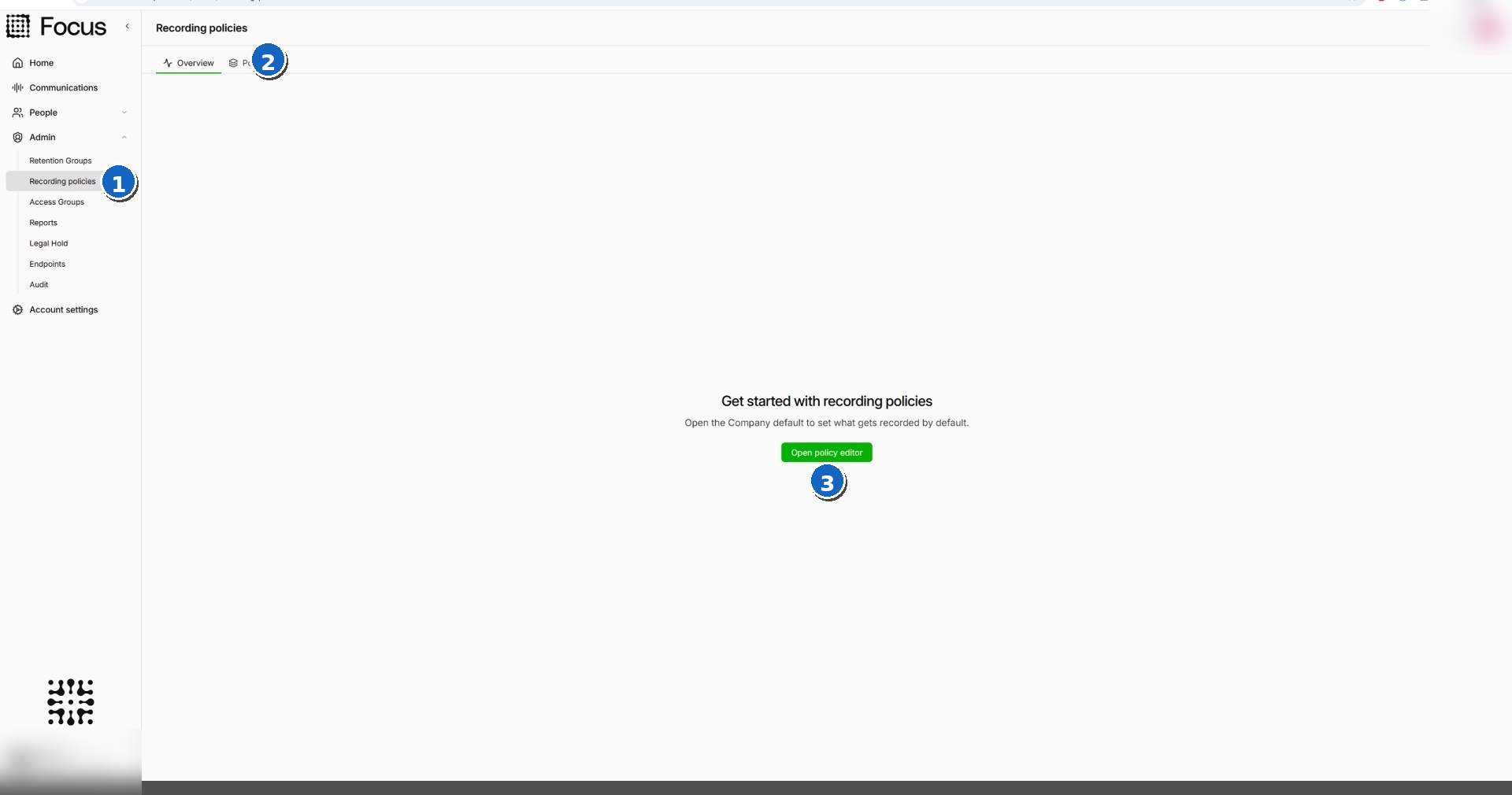
- Select Recording policies from the Admin menu.
- Use Overview as the landing page, or select Policies to open the policy list.
- Select Open policy editor to go directly to Company default.
How policies are applied
Focus checks custom policies from top to bottom. The policy at the top of the list has the highest priority.
A custom policy must match both:
- the call type; and
- the recorded user or policy scope.
When no custom policy matches, Company default handles the call.
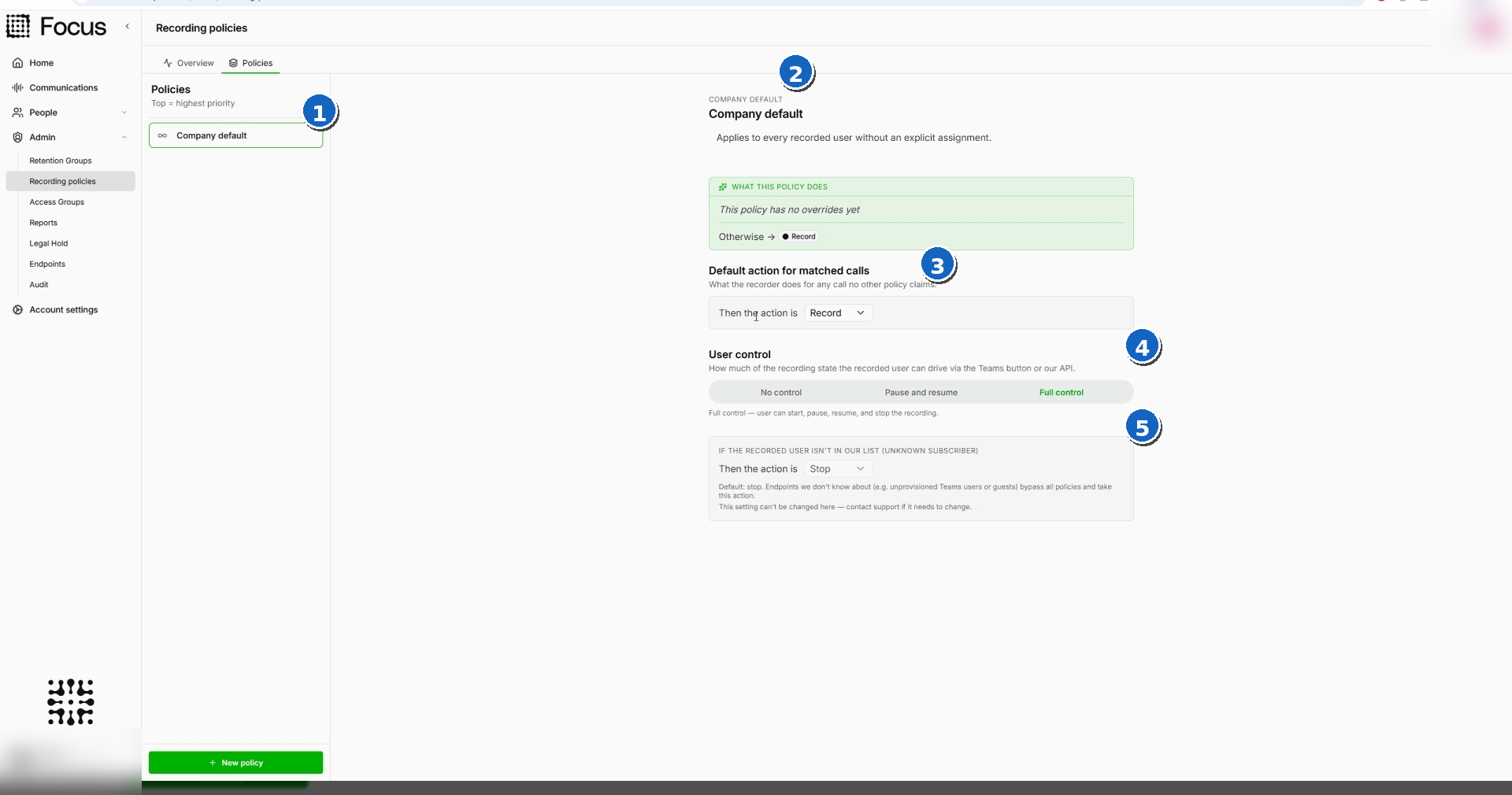
- The policy list is ordered from highest to lowest priority.
- Company default handles calls that are not claimed by a custom policy.
- Default action for matched calls is a choose-one dropdown.
- User control is a choose-one setting.
- The unknown-subscriber fallback applies when the recorded user is not in the subscriber list.
A custom policy will not run until at least one call type is selected. It is also parked when Applies to everyone is off and no people or groups have been assigned.
Unknown subscribers
A user or guest that is not in the subscriber list bypasses the normal policy list and uses the unknown-subscriber fallback. The fallback shown here is Stop and cannot be changed from this page.
Contact Support if the fallback needs to be changed.
Default action
Under Default action for matched calls, open the dropdown and choose one action.
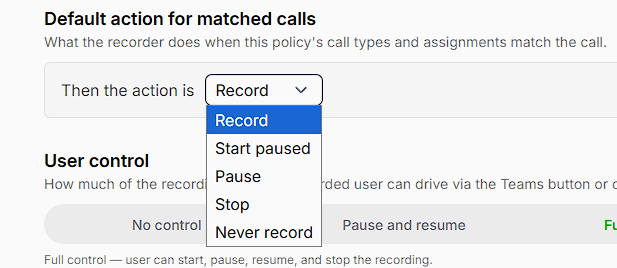
| Action | What happens |
|---|---|
| Record | Recording starts when the policy matches the call. |
| Start paused | The call is presented with recording paused. It can be resumed when the user-control setting allows it. |
| Pause | A paused recording action is applied to the matched call. |
| Stop | A new call is presented in a stopped state. It can be started manually when the user-control setting allows Start. If Stop is selected after recording has started, recording ends permanently for that call. |
| Never record | The call is not presented to Focus. No active call is shown and the user cannot start recording from the application. |
Stop can leave a new call available for manual start. Once Stop is used during an active recording, recording cannot be started again for that call.
Never record is a hard close. The call does not appear in the application at all. Keep Never record policies narrow and test them carefully to avoid losing required recordings.
User control
User control determines which recording controls are available to the recorded user in Microsoft Teams.
| Setting | What the user can do |
|---|---|
| No control | Start, pause and resume requests are ignored or unavailable. Stop is not available. This is suitable for compulsory recording. |
| Pause and resume | The user can start, pause and resume recording, but cannot stop it permanently. |
| Full control | The user can start, pause, resume and stop recording. |
Use Pause and Resume when recording needs to stop temporarily and continue later. Use Stop only when recording should end permanently for the current call.
Create a custom policy
Select New policy at the bottom of the policy list.
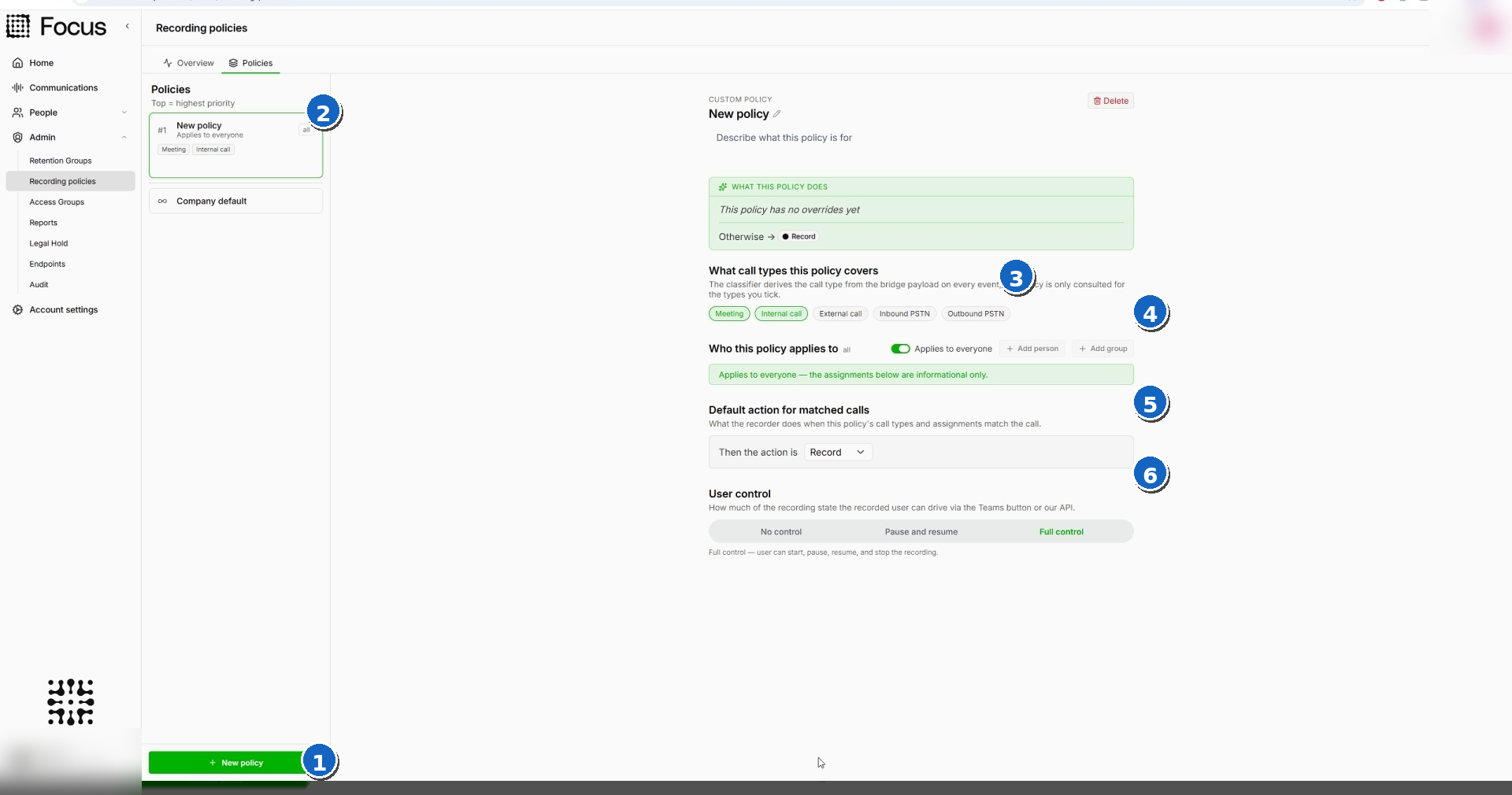
- Select New policy.
- Give the policy a clear name and description. The summary card shows its priority, scope and selected call types.
- Under What call types this policy covers, choose one or many call types:
- Meeting
- Internal call
- External call
- Inbound PSTN
- Outbound PSTN
- Under Who this policy applies to, either turn on Applies to everyone or add one or many people and groups.
- Under Default action for matched calls, choose one action.
- Under User control, choose one setting.
- Review the policy summary, then save the changes.
When Applies to everyone is on, the policy covers all eligible recorded users. Any people or groups shown underneath are informational only.
Keep narrow, specific policies above broad policies so that the intended rule claims the call first.
Save changes
The Unsaved changes banner appears after a policy is edited.
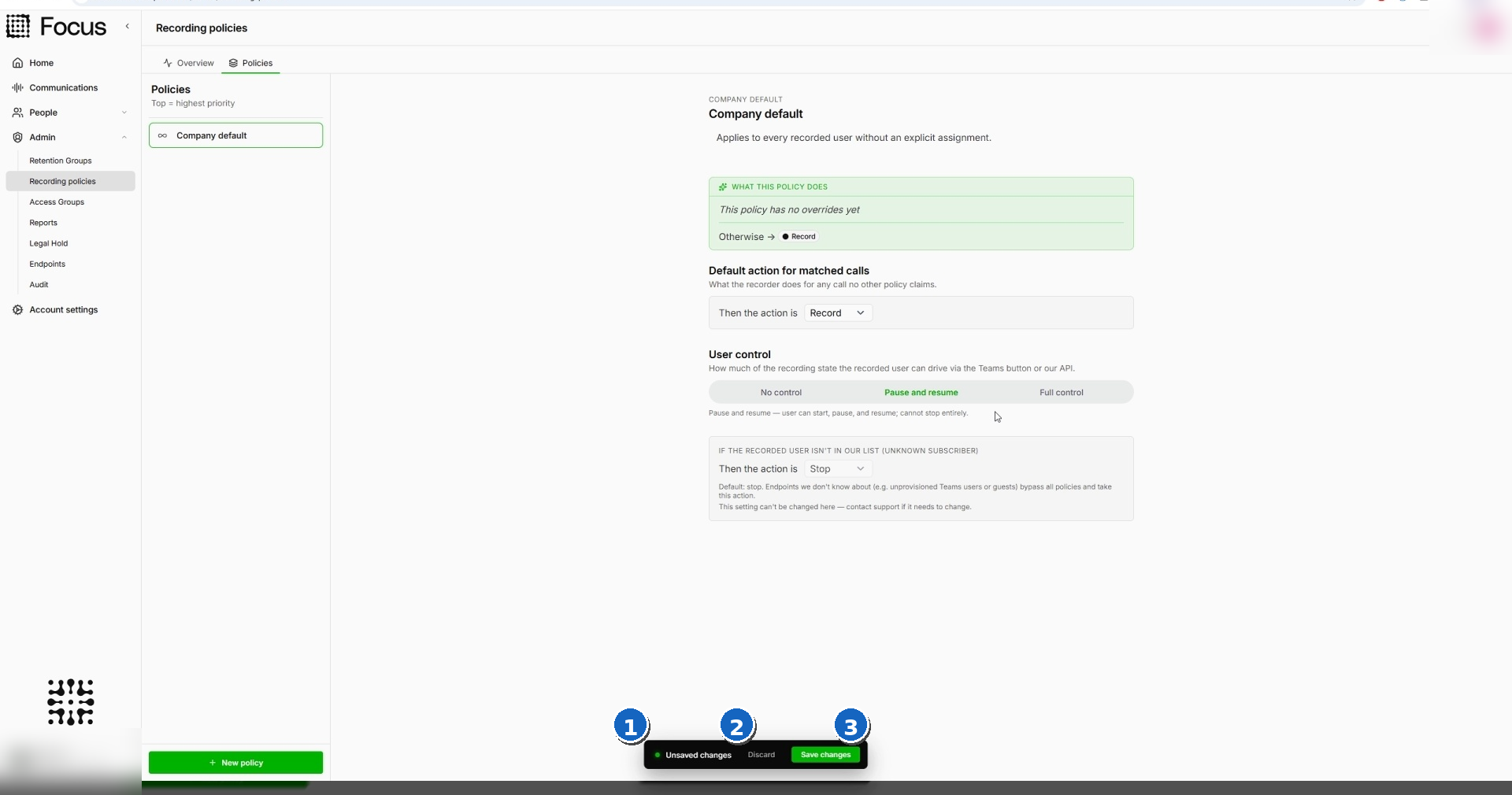
- The banner remains visible while changes are pending.
- Select Discard to remove the unsaved changes.
- Select Save changes to apply the new configuration.
Before using a policy
Before applying a new or updated policy to live users:
- confirm that at least one call type is selected;
- confirm the intended people, groups or organisation-wide scope;
- review the policy position in the list;
- check the default action and user-control setting;
- test each expected call type with a suitable test user;
- test Never record rules against both intended and nearby scenarios; and
- confirm that the expected controls appear in Microsoft Teams.