Teams recording setup (Automated)
Setup process
Getting Started
Setting up Teams recording with Focus is straightforward and can be configured to match your organization's specific recording policies. Whether you need compliant recording for regulatory purposes or convenience recording for business optimization, our solution adapts to your requirements.
Requirements
To setup the required policy option you will need the below:
- An Azure global admin user account or Teams global admin user account
- A Focus Super user account
Automated script or manual steps.
An automated powershell script has been created with all the below steps done for you. If you prefer to do each step one by one simply skip to the Manual section below and follow along.
Automated - First setup
There are two options for automated setup:
- You can run the script directly with the below command via an Administrator Powershell:
Set-ExecutionPolicy Bypass -Scope Process -Force
Invoke-RestMethod "https://uk.help.aiphoria.net/scripts/Setup-AiphoriaTeamsRecorder.ps1" | Out-File Setup-AiphoriaTeamsRecorder.ps1
.\Setup-AiphoriaTeamsRecorder.ps1
- You can download the file, read over it and run it manually.
- Download the file from this link: Download Teams Setup PowerShell Script.
- Then open a Powershell Administrator prompt within your download folder and run:
Set-ExecutionPolicy -ExecutionPolicy RemoteSigned -Scope Process -Force
.\Setup-AiphoriaTeamsRecorder.ps1
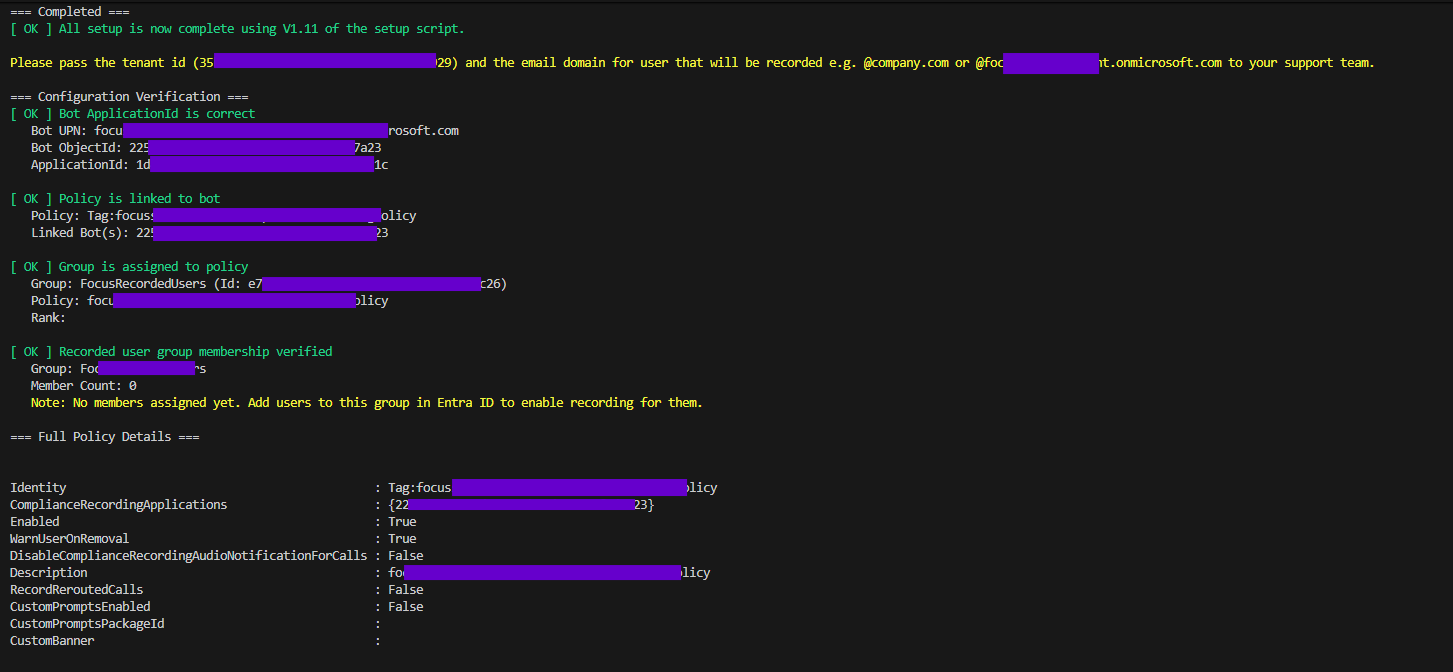
You should get an output screen that looks like the below, please take a screenshot of this for help with any issues later:
Next steps
Recorded people (Subscribers)
You can now add the users to the group following the examples on this page.
Information required by the Focus support team
Now this has completed please send the below information to the Focus support team:
- Tenant id
- Recorded users group name
- Domain(s) of recorded users
- What recording types you would like (Default is all)
Portal users
Focus supports automatic user sync for access to the portal. If you want to sync portal users from azure as well you first need to setup SSO and then follow the extra steps detailed in this section.
If user sync is not required or needed you can continue adding users via the standard methods in the Focus help section
Good to go
You are now ready to start recording your teams calls.
Removal process
If you ever need to remove the groups and setting applied via this script you can use the automated removal script. Please make sure you consult the Focus support team before running this script.
There are two options for removing the teams setup:
- You can run the script directly with the below command via an Administrator Powershell:
Set-ExecutionPolicy Bypass -Scope Process -Force
Invoke-RestMethod "https://uk.help.aiphoria.net/scripts/Remove-AiphoriaTeamsRecorder.ps1" | Out-File Setup-AiphoriaTeamsRecorder.ps1
.\Setup-AiphoriaTeamsRecorder.ps1
- You can download the file, read over it and run it manually.
- Download the file from this link: Download Teams Setup PowerShell Script.
- Then open a Powershell Administrator prompt within your download folder and run:
Set-ExecutionPolicy -ExecutionPolicy RemoteSigned -Scope Process -Force
.\Remove-AiphoriaTeamsRecorder.ps1