Focus Compliance Recorder in Microsoft Teams
Focus Compliance Recorder shows the recording status of your Microsoft Teams calls and meetings and gives you the controls allowed by your organisation's recording policy.
The controls you see can vary. Some organisations require recording to continue without user control, while others allow you to start, pause, resume or stop recording.
Your administrator must make Focus Compliance Recorder available in Microsoft Teams and link your Teams account to the correct Focus subscriber.
Quick Tour
Open Focus Compliance Recorder
When the app is pinned, the Focus icon appears in the Microsoft Teams app bar.
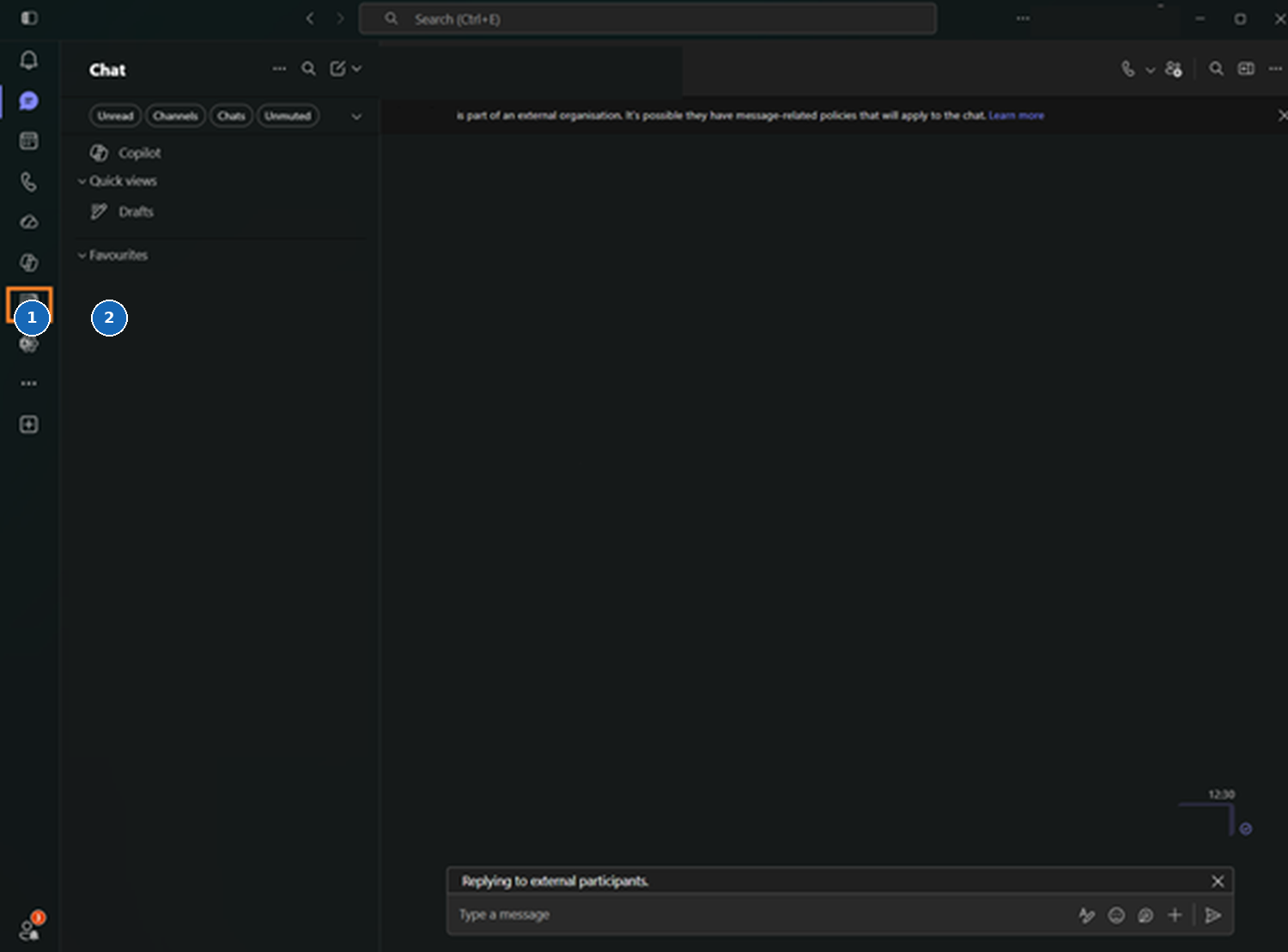
- Select the Focus Compliance Recorder icon in the Teams app bar.
- The highlighted icon confirms that the app is pinned and available.
If the icon is not present, contact your administrator.
Sign in
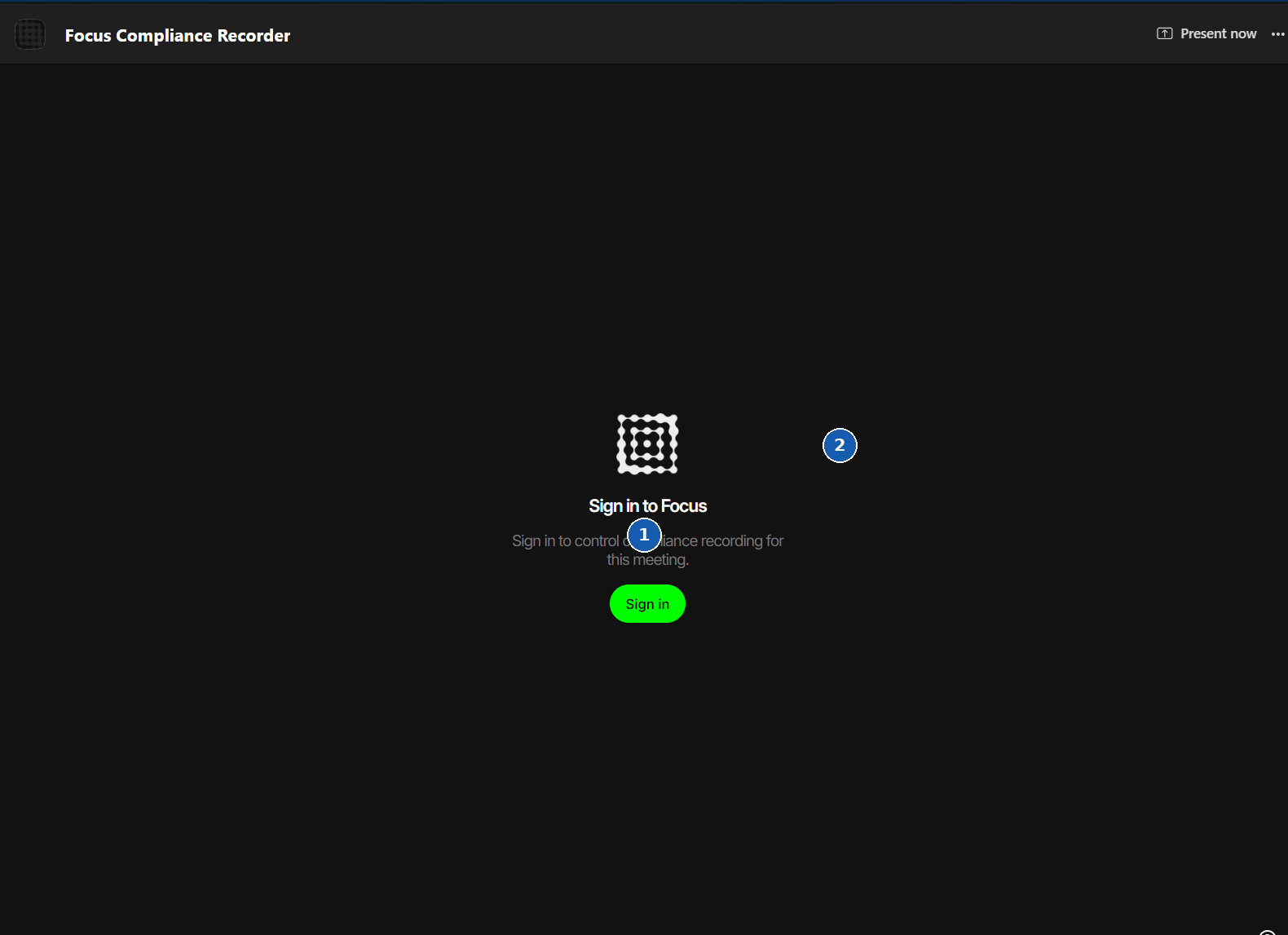
- Select Sign in.
- Sign in with the Microsoft Teams account linked to your Focus subscriber.
If your organisation uses single sign-on, the account-to-subscriber association is usually automatic.
Home page
After sign-in, the home page shows your current recording status and recent recordings.
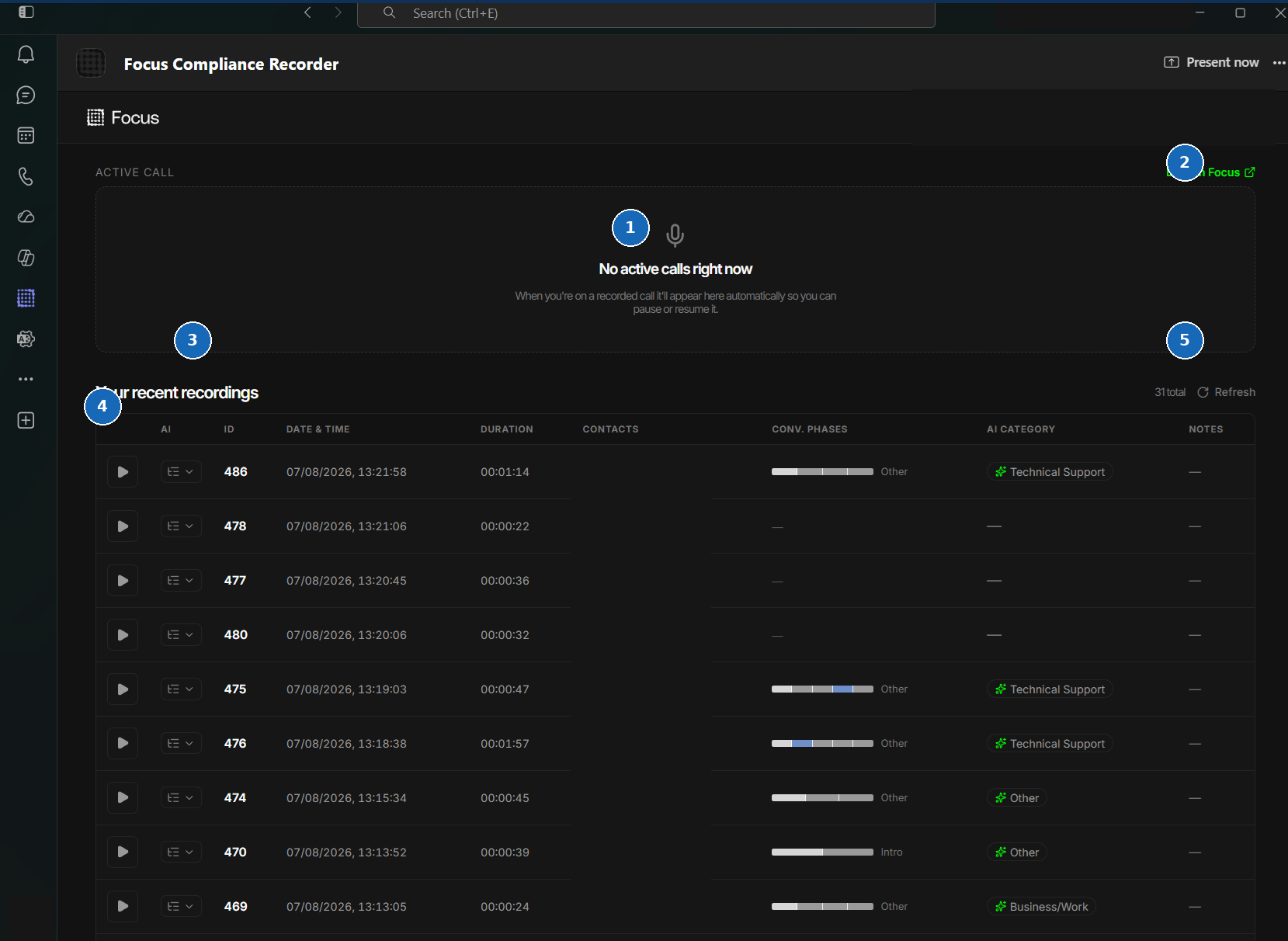
- The Active call panel shows whether Focus currently has a call in progress.
- Select Launch Focus to open the main Focus portal.
- Recent recordings appear below the Active call panel.
- Select the play button to open a recording.
- Select Refresh to update the list.
The recent-recordings list can show the recording ID, date and time, duration, contacts, conversation phases, AI category and notes. The information available to you depends on your organisation's access settings.
When no recorded call is active, the Active call panel reports that there is no active call.
A call matched by a Never record policy is not presented to the application, so it will not appear as an active call and cannot be started from Focus.
When a call is being recorded
The Active call panel updates automatically when Focus is recording a call.
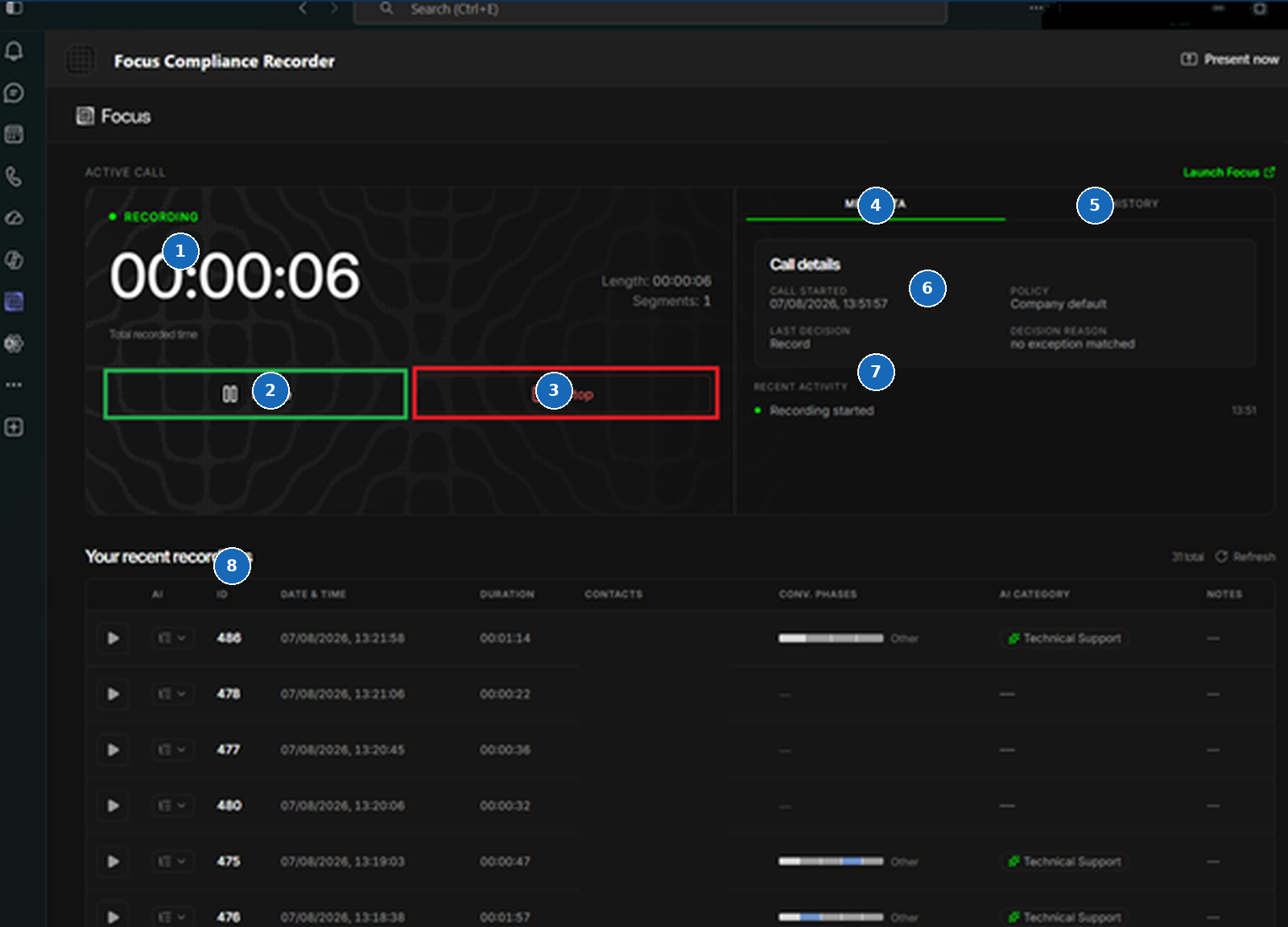
- Recording status and timer show the current state and total recorded time.
- Select Pause to suspend recording temporarily when the control is available.
- Select Stop to end recording when Full control is available.
- Select Metadata to review information about the current call.
- Select History to review recording-state changes.
- Call details show the call start time, policy, last decision and decision reason.
- Recent activity shows events such as recording starting, pausing or resuming.
- Recent recordings remain available below the Active call panel.
Recording controls
Your organisation's recording policy determines which controls are available.
| Control level | Available controls |
|---|---|
| No control | Recording controls are unavailable or ignored. This is commonly used for compulsory recording. |
| Pause and resume | You can start, pause and resume recording, but you cannot stop it permanently. |
| Full control | You can start, pause, resume and stop recording. |
Start recording
A call can be presented to Focus in a stopped state. When Start is available, select it to begin recording.
Pause recording
- Select Pause.
- Recording enters the paused state.
- The button changes to Resume.
Pausing suspends capture temporarily. Use it when recording needs to continue later in the same call.
Resume recording
Select Resume to continue recording. The button changes back to Pause after recording resumes.
Stop recording
- Select Stop.
- Select the button again when the confirmation action is shown.
- Recording ends for the current call.
After Stop is confirmed on an active recording, recording cannot be started again for that call.
Use Pause and Resume when you only need to suspend recording temporarily.
Use Focus during a Teams call
You can open Focus Compliance Recorder without leaving the active Teams call.
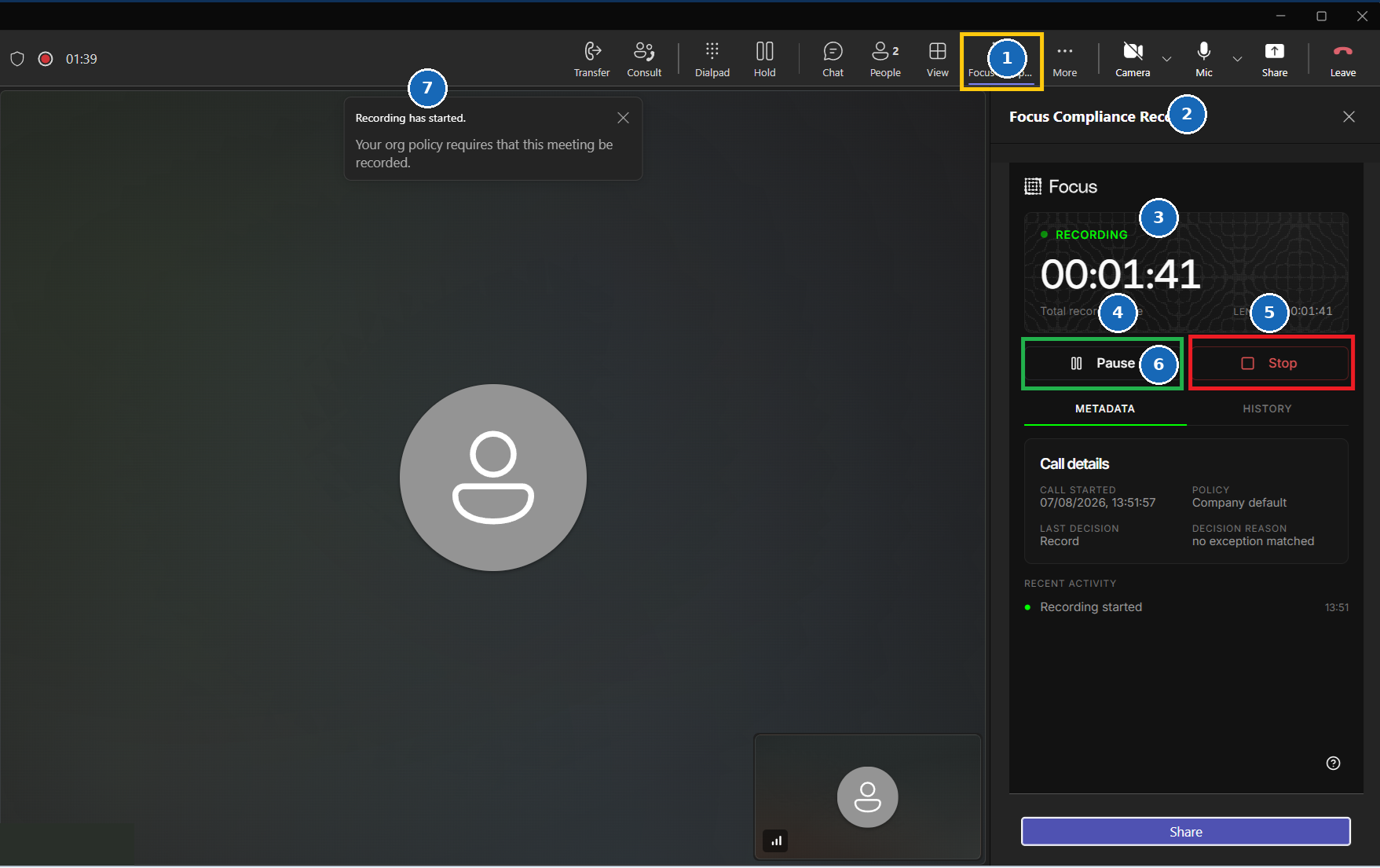
- Select Focus Compliance Recorder in the Teams call toolbar.
- The app opens in the side panel.
- Review the recording status and total recorded time.
- Select Pause when you need to suspend recording temporarily. The button changes to Resume while recording is paused.
- Select Stop only when recording should end permanently for the current call.
- Use Metadata or History to review the active call state.
- Microsoft Teams may display a notice confirming that the call is being recorded because of your organisation's policy.
After the call
Return to the Focus Compliance Recorder home page and select Refresh. When processing is complete, the call appears in recent recordings with its date and time, duration and other available information.
If the completed recording does not appear after processing, contact your administrator or support team.