Data Download/Export
The Communications screen allows you to download individual or multiple recordings directly from the Focus portal. Due to data protection requirements, only certain roles have permission to download recordings locally from the Focus portal (see People - Subscribers for more information on permissions).
Please handle all downloaded call recordings with care. Follow your company’s data protection policy to ensure sensitive information is stored and shared appropriately.
Single Recording Download
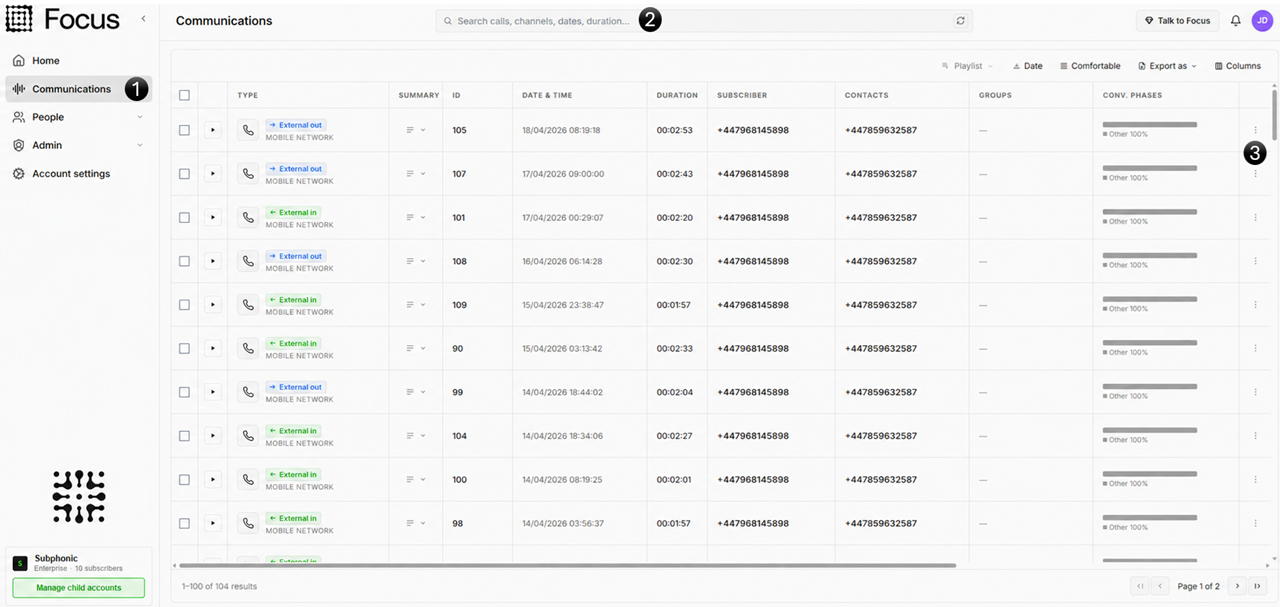
- Navigate to the communications screen
- Optional: Apply a filter to refine the results and locate the recording you want to download
- Once you’ve located the recording you want to download, simply scroll to the right-hand side of the grid and click the three dots to display a list of options
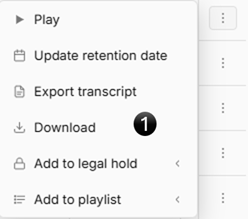
- Click download. A .mp3 file of the recording will be downloaded to your default Downloads folder.
Multi Recording Download
Bulk recording downloads are limited to 100 recordings per request. If you want to share recordings with another Focus user, consider using the Playlist feature instead. Playlists are not limited to 100 recordings and offer the added benefit of keeping recordings securely within the Focus platform.
Navigate to the communications screen
Optional: By applying a filter you can refine results to locate the data you want to download
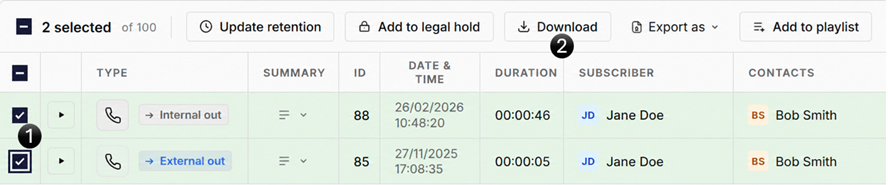
- Manually select the recordings you want to download (either filtered results or directly from the communications screen)
- Click the Download icon from the new menu above the search results, your selected .mp3 recordings will automatically start downloading to your native download folder.
By clicking the header tick box you can select all recordings visible in the grid
Recording Data Export
Recording data can be exported from both the Reports screen in Focus and directly from filtered results in the Communications grid. This allows you to filter recordings in the grid and export the results as a .csv or .xlsx file based on your own criteria. For example, you may want to export data for calls within a certain time period or a specific day. This is quick and easy to achieve in Focus.
The exported data includes:
- Type
- Summary ID
- Date/Time
- Duration
- Subscriber
- Contacts
- Groups
- Conv Phases
- AI Categorisation
- Notes
- Expires
- Legal Holds
- Private
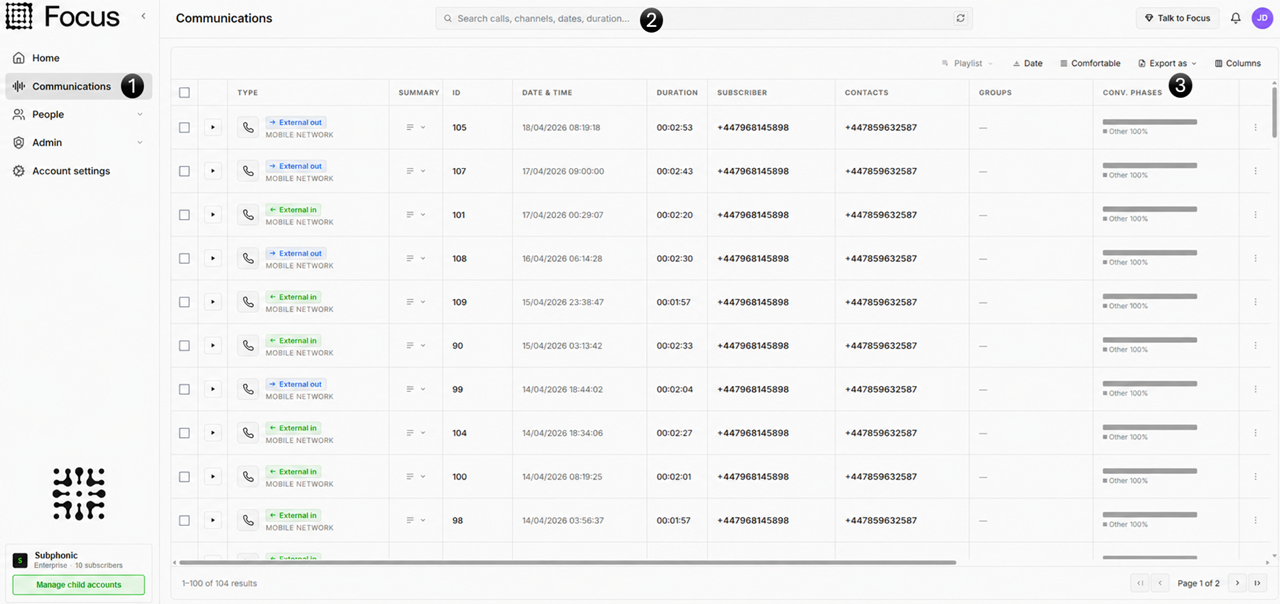
- Navigate to the communications screen
- Use the filters to customise your search and display the results that meet your criteria
- Click the Export as icon to the right of the screen and you will be presented with two options
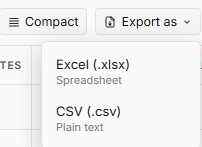
Choose either Excel (.xlsx) or CSV (.csv), depending on your requirements. Once selected, the export will begin downloading automatically. Once complete the file will be available in your default downloads folder.