Results grid
Grid Features
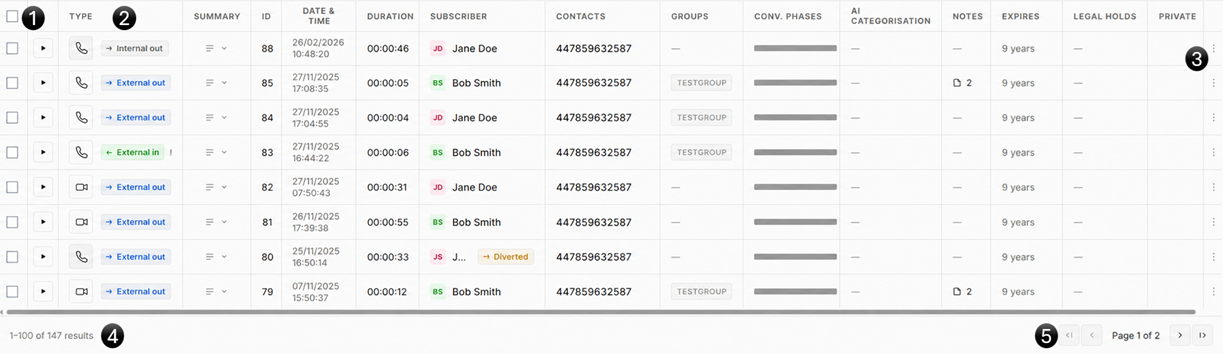
- Tick or untick all communications in the current view. Tick boxes are also available on each row if you wish to select individual communications.
- Grid column headings:
- Playback - Press the play icon to begin playback of the communication
- Type - The communication type (e.g. Teams meeting, phone call, SMS)
- Summary - Displays a short summary of the communication. This can help you locate a communication if you are unsure of the exact time or details
- ID - A unique reference for the communication
- Date - The date and time the communication started. This is stored in UTC and converted to your browser's local time zone for display
- Duration - The length of the communication in HH:MM:SS format
- Subscriber - This depends on what has been added to the People - Subscribers section of Focus. If we know the persons name, then this will be shown as a priority over just the number
- Contacts - The information about the third party in the communication. This depends what data has been added to the People - Contacts section of Focus. If the person's name is known, it will be displayed instead of their number
- Groups - Displays any groups assigned to the communication
- Conv Phases - Hover over this column to view a percentage breakdown of the different stages of the conversation, such as opening, sales discussion, training plan, and conclusion
- AI Categorisation - Displays any tags assigned by the AI or added through comments for the communication
- Notes - The number of comments or notes associated with the communication
- Expires - The time remaining until the communication is automatically removed from the platform
- Legal Holds - Displays any Legal Hold groups assigned to the communication
- Private - Indicates that the communication has been marked as private. If the user has permission to play the communication, the play button will be available. Otherwise, a padlock icon will be displayed and playback will not be possible
- Actions - That can be performed on the communication, such as downloading it, updating the retention date or adding it to a playlist. (See Actions for more information)
- Total number of communications returned by the current search filters
- Total number of pages returned by the current search
Clicking on the play button within the grid will start playback of the selected communication (if audio is supported). You can also view the transcript and metadata via the Conversation Sidebar.
Grid layout
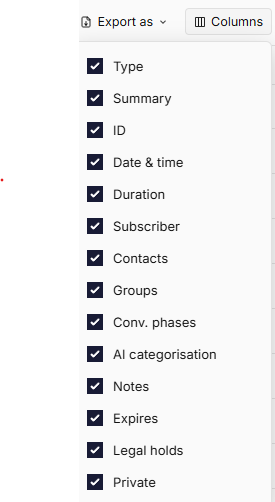
The grid layout can be customised to display only the columns you want to see. Select the Columns icon in the top-right corner of the grid. You will be presented with the following options.
Resize columns
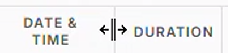
Hover over the divider between two columns to resize them. If a column becomes too narrow to display its full contents, the value will be truncated and displayed with an ellipsis (...) to indicate that additional text is hidden.
Single communication actions
Actions are available for both individual and multiple selected communications. The available options differ slightly depending on your selection.
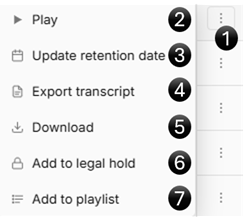
- Action button - Click the three-dot icon on the far right of a communication to open the actions menu
- Play - Plays the selected communication
- Update retention date - Updates the communication's retention date. For more information see the Retention section
- Export transcript - Exports the transcript for the communication, if one is available
- Download - Downloads the selected communication
- Add to Legal Hold - Adds the communication to a Legal Hold. For more information, see the Legal holds section
- Add to Playlist - Adds the communication to a new or existing playlist
Multi select actions
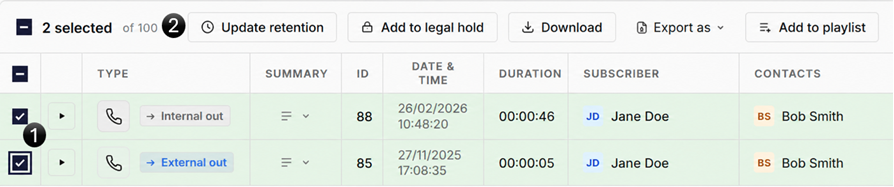
When more than one communication is selected, an additional toolbar appears at the top of the Communications page, providing actions similar to those available for a single communication.
-
Select two or more communications.
-
The following actions become available:
- Update Retention - Updates the retention dates for all selected communications at the same time. For more information see the Retention section
- Add to Legal Hold - Adds all selected communications to the same Legal Hold. For more information see the Legal holds section
- Download - Downloads all selected communications
- Export as - Exports the selected communications as a CSV or Excel file
- Add to Playlist - Adds all selected communications to a new or existing playlist for more information on see the Playlists section