Search
The search within the Focus portal is designed to be as user-friendly as possible.
To open the search simply click into the search bar (1).

Once the search is open, the first section within the search dropdown is a list of categories. The options shown will depend on your user's policy, a common example is shown below.
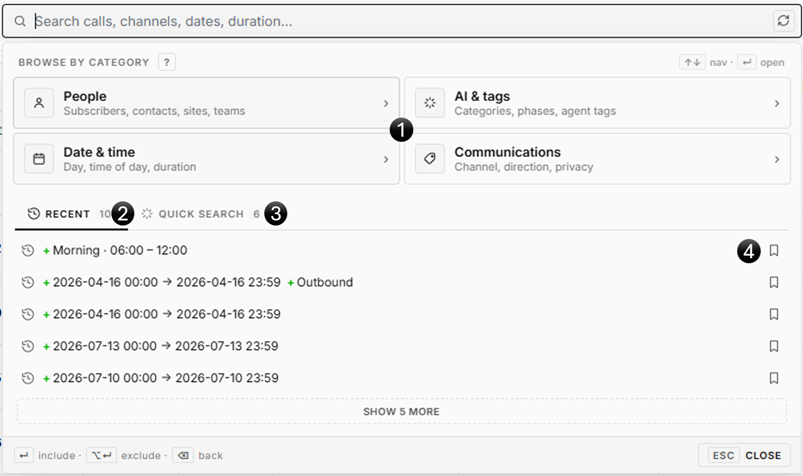
- Categories that can be selected to expand the search. Whether you are looking for calls to or from a specific number or searching for a particular date, this can all be achieved from here.
- Recent - Lists the most recent filter criteria that has been used. Clicking any of these will add the filter to the search bar
- Quick Search - Provides a selectable list of common searches that can be selected with the click of a button
- Tag - This option allows you to save specific filters for later use
Search options
Include and/or Exclude
Whenever possible, all search categories allow both Include and Exclude options. However, some items, such as Date Range, only allow inclusion.
As an example, you may want to include calls from Yesterday but exclude any calls before 9am. Each section of the search is built up under the Include (green) or Exclude (red) sections and shows the corresponding colour.

Upon selecting the relevant filters, they will then appear in the main search bar.

Search categories
All search categories can be selected via the dropdown lists or a context-aware search built into the dropdown. When you start typing the Focus search will provide any matching results across any of the below categories. This powerful feature allows power users to jump directly to a tag, a member of staff or even a time range.
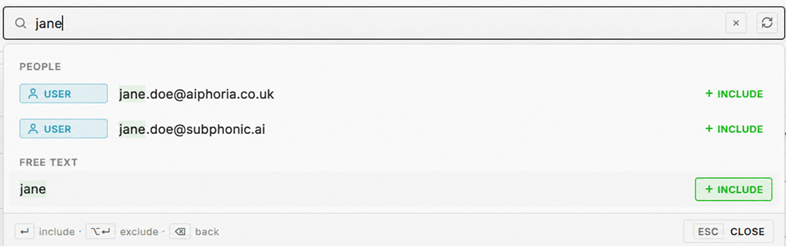
In the above example, after typing jane the context search has found a few people named jane and also has suggested a free text search on the word jane.
AI Analysis
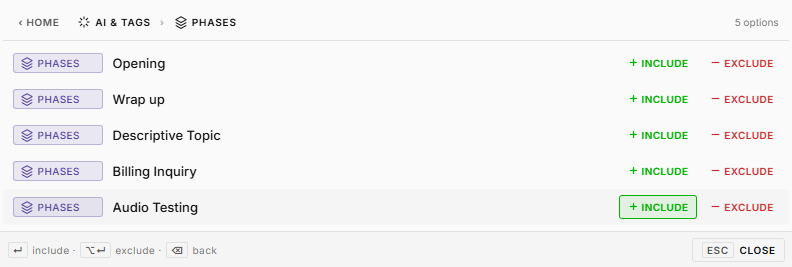
Under this section, users can filter for any tags or AI analysis performed on communications that are currently enabled on the account.
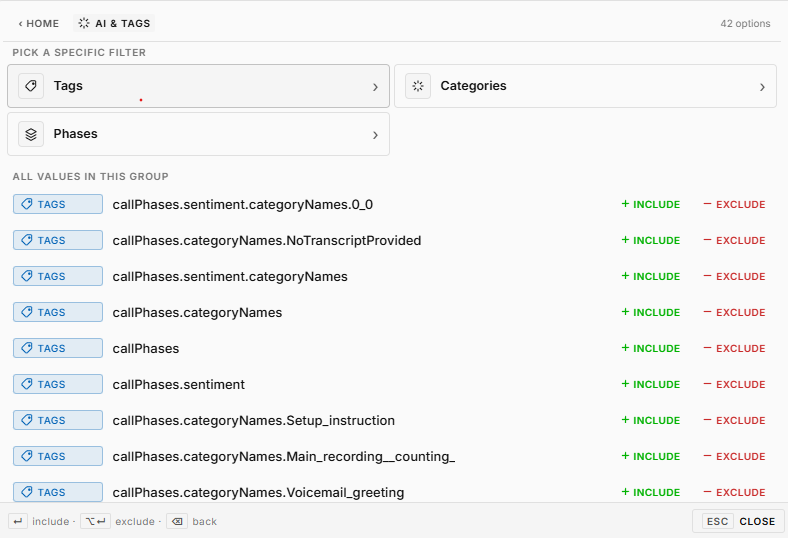
You can include/exclude any of the relevant criteria from the Tags, Phases and Categories options as shown.
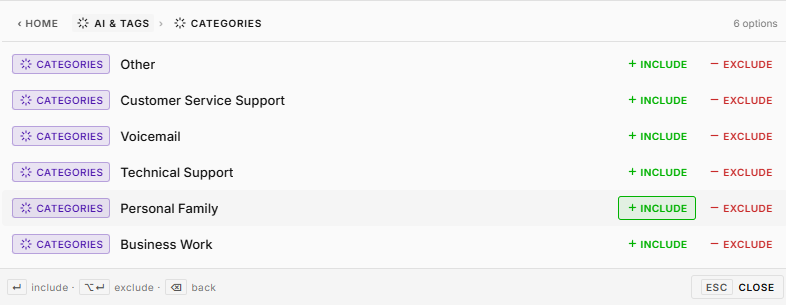
Groups
Groups are defined within the Staff section of the people administration sections. They let you quickly include or exclude groups of calls made by Staff members.

Here you can see you can easily include or exclude groups that are then added to the search filter.

Date & Time
Date and time are very common search criteria. As well as being able to select custom ranges for dates, the Focus portal also allows quick access to common ranges like Today, Yesterday and This week.
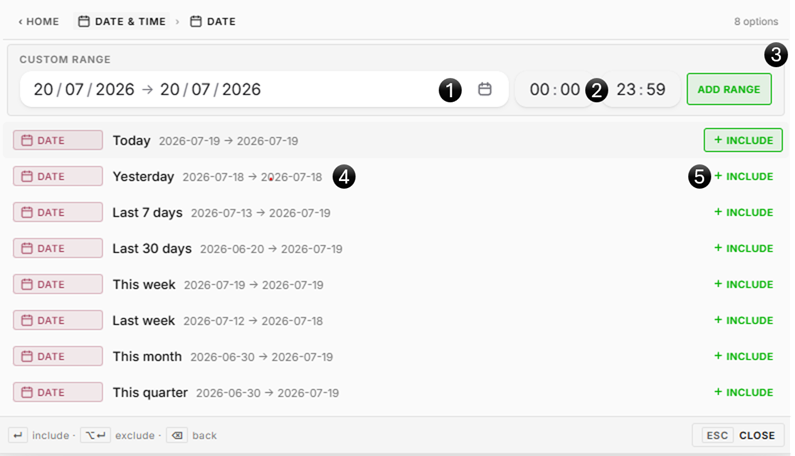
- Selecting the dates in this section will let you select a custom date range. e.g. just Tuesday this week, or a few days last week
- If selecting a specific date range (1) you can add a start or end time to the range as well, if no time range is added, then midnight is used by default
- Add Range - This option adds the selected criteria to the search filter
- Allows you to select common preset filters
- Click here to add the selected filter to your communications search.
If you wish to add a start/end time, you can do this from the custom range section shown above. You can also select the Time of Day filter and choose from the predefined filters available in this section, as shown in (1).
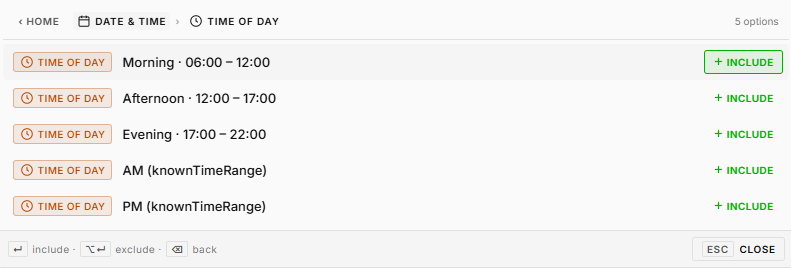
Time range is independent of date range. If you are looking at communications over more than one day, then the time range will apply to each day in that range. For example: Include time range of 09:00 -> 10:00 with a date range of "Last 7 days" would result in any communications that happened between 9am and 10am in the last 7 days.
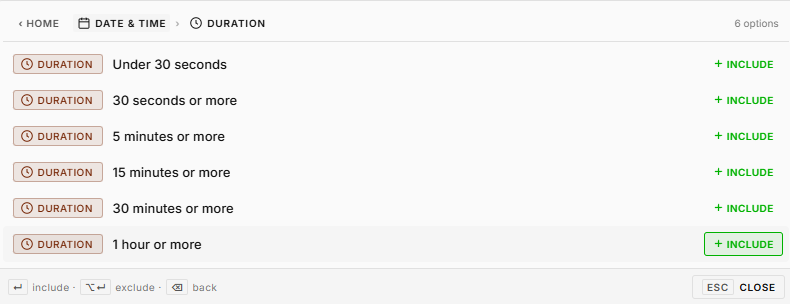
Finally, you can search by the duration of a call by selecting one of the predefined options shown below.
Communication Type
Communication Type enables the addition of filters for different types of communication. All types can be included or excluded.
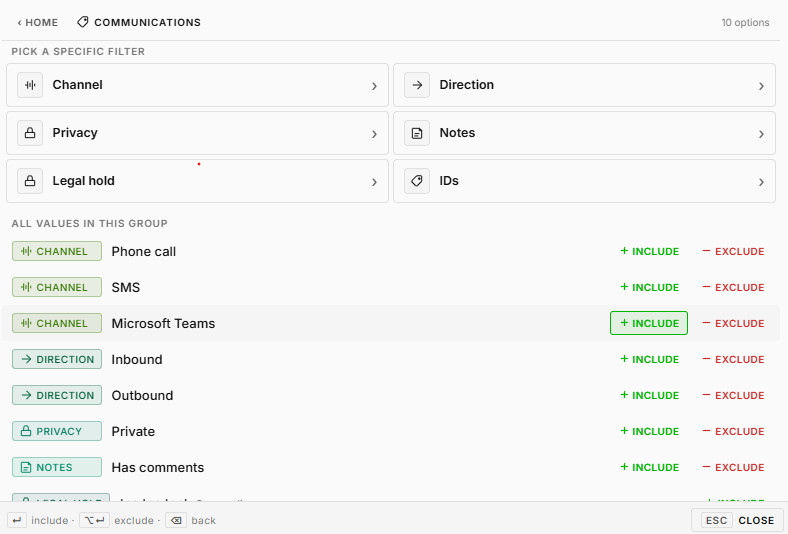
Communication Channel
Communication Channel allows a filter to be added that allows you to filter by all of the various communication types available to you.
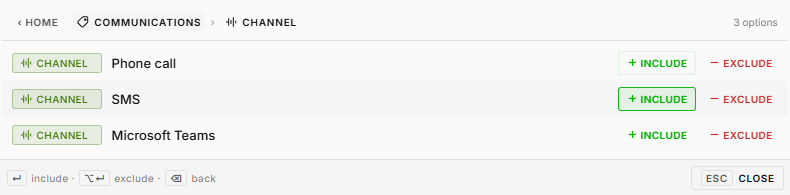
Only communication types provisioned on your account will show in this list.
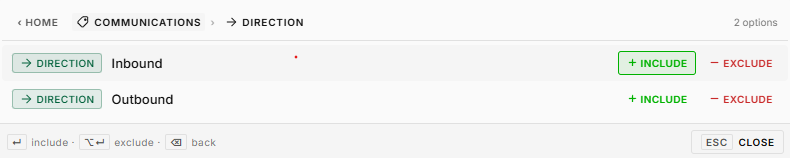
Communication Direction
Communication direction allows a filter to be added that will show only Inbound or Outbound communications. This is defined from the recorded staff member's point of view.
Communication Privacy
Communication Privacy allows you to include or exclude communications that have been marked as private in your search.

Communication Notes
Communication Notes allows you to include or exclude communications that have had notes added to them.

Communication Legal Hold
Communication Legal Hold is a filter that will allow you to filter by communications that have been assigned to a particular legal hold group.

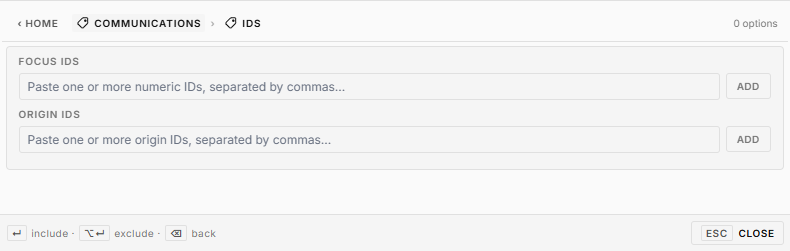
Communication ID
Communication ID allows you to search by the Focus ID associated with the communication from the search interface or the Origin ID if known.
People
People can be searched for via the main search at the top of the Focus search dropdown. Once a few characters have been entered, any matching people (staff or external) will be returned and can be included or excluded from the search results. It is also possible to include or exclude multiple people in the same filter.
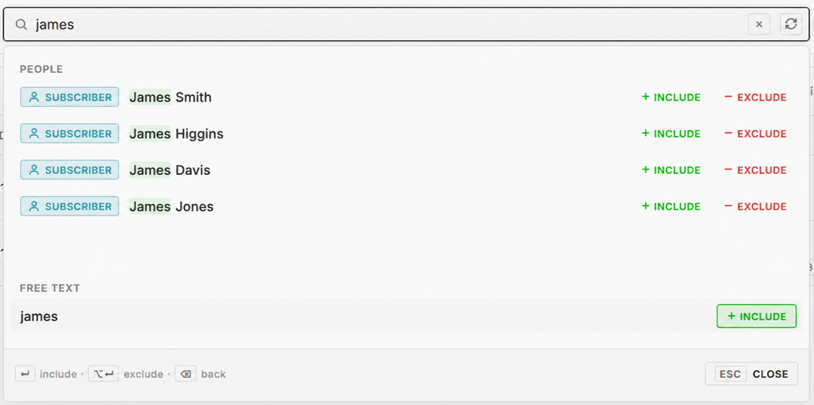
Free text
Free text uses AI-powered semantic search to find relevant results across transcripts, metadata, people and extracted data. It understands the meaning of your search terms rather than looking only for exact word matches.

- Enter the text you wish to search on
- Select the text and the system will search as free text
It is recommended to do a narrow date range search when doing free-text searching to avoid long wait times
Saved searches
Once a search has run, it can be saved and used again later.
Once you have used a filter to search, if you wish to save it, simply go into the search bar and under the Recent tab select the save icon to the far right (1).
- Press the save icon within the filter window
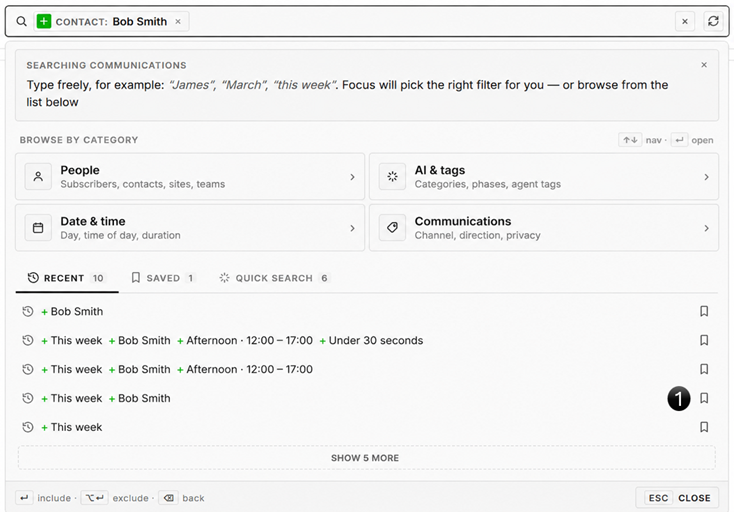
Once a set of search filters has been saved, a saved section will now appear next to the recent search filter for easy access.
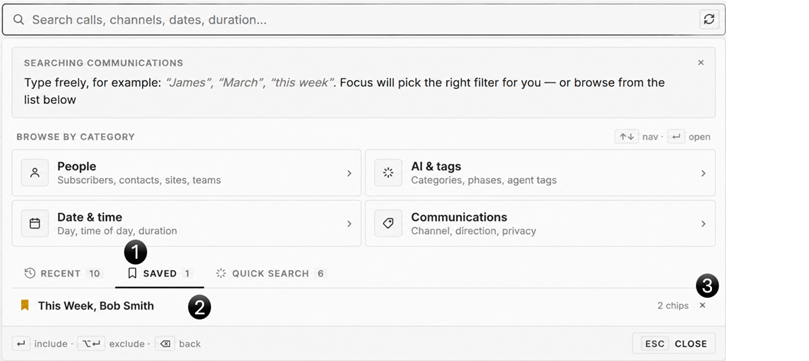
- Once any search is saved, this section will show the latest saved searches
- Select a saved search to rerun the filters
- Clicking the x icon (3) will remove the saved filter
If you create saved searches with dynamic items, such as groups or quick date ranges (e.g. Yesterday), the saved search will also be dynamic and return the correct results at runtime.