Communications screen overview
When you first load the communication screen the portal will automatically display the latest communications that your user has permission to see (see People - Staff for more information on permissions)
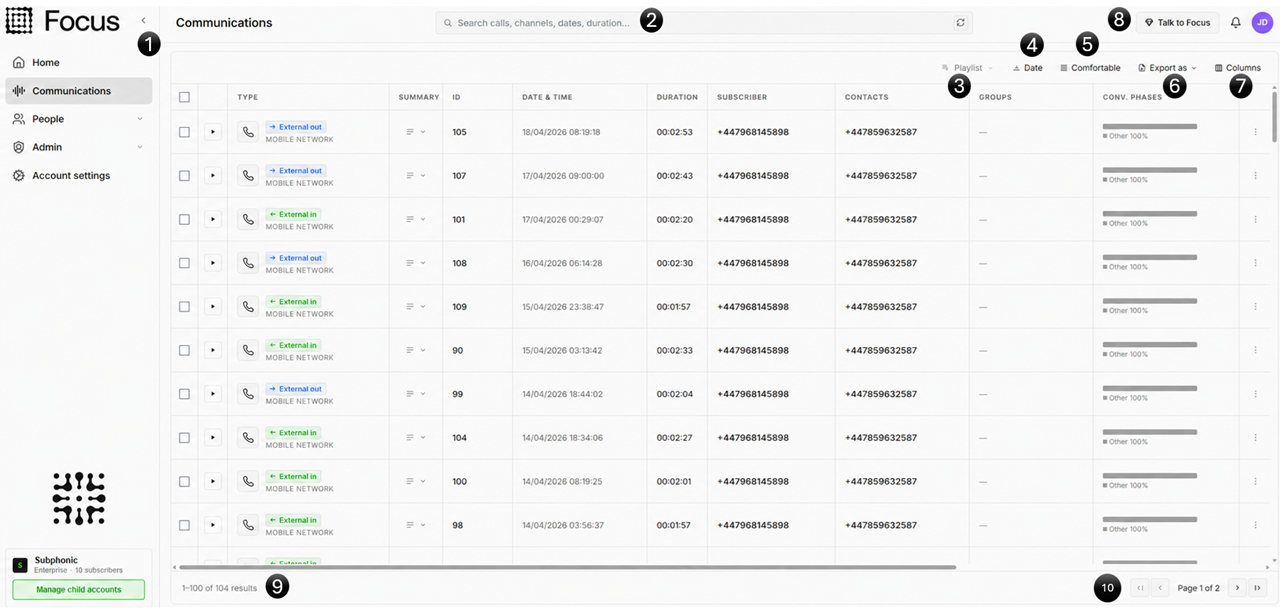
- Change the size of the menu bar (See Home - Menu options)
- Search - The Focus search bar lets you quickly find any communications you have access to
- Playlists - View current playlists and jump to a specific playlist
- Date - Sort by Oldest or Newest communications
- Confortable - Resizes the search results to be a more compact view
- Export as - Allows the user to export the search results into a Excel (.xlsx) or CSV (.csv) file
- Columns - Here you can select what columns you want to view within the communications screen
- Talk to Focus - Your inbuilt AI that not only understands your data, it also understands your processes, people and communications. Focus AI will be able to answer your questions and create dynamic UI's from the simplest of questions
- The total number of communications returned from your filter. When you first open the page this will be all active communications your user has permission to view. - See Results Grid for more information
- Page options and size- See Results Grid for more information
What's on this section
- Search — The Focus search bar, search categories, and saved searches.
- Results grid — Grid features, layout customisation, and single/multi-select actions.
- Playlists — Group communications into playlists for sharing and review (coming soon).
- Playback — The playback bar, conversation sidebar, transcripts, metadata and comments.
- Details view — The full-screen communication detail view.
- Reviews / QA — Structured reviews and quality assurance scoring (coming soon).
- Data Download/Export — Download single or multiple recordings, and export grid data to CSV/Excel.