Using the Focus Teams app
The Focus Compliance Recorder app shows you the recording status of your Microsoft Teams calls and meetings, and lets you pause, resume or stop recording when your organisation's policy allows. It also gives you a quick list of your recent recordings without leaving Teams.
This guide follows a recorded meeting from start to finish, so you can see exactly what happens at each step.
The app needs to be installed in Teams first. See Installing the app.
What you can do depends on your policy
Each recording policy has its own user control setting, which decides the controls you see. Different policies can apply to different calls, so the controls available to you can change from one call to the next. If a button in this guide isn't shown, the policy for that call doesn't allow it.
| Control level | What you can do |
|---|---|
| No control | See the recording status only. Common where recording is compulsory. |
| Pause and resume | Start, pause and resume recording, but not stop it. |
| Full control | Start, pause, resume and stop recording. |
If you only need to control your own recordings in Teams, your administrator may give you the Recording control user role. You'll see the recording controls, but not Your recordings or the Focus portal, so steps 1 and 7 will look different for you. See permissions.
1. Open Focus in Teams
Select Focus Compliance Recorder in the Teams app bar on the left.
Signing in
The first time you use Focus in Teams, you'll need to sign in. You can do this from the Focus app or from the panel in a meeting.
Pick whichever way suits you. Once you've signed in one way, you're signed in for both.
In the Focus app
Signing in
You only need to do this once. Teams remembers you after that.
The app asks you to sign in to Focus. Select Sign in (1).
In a meeting
If you're already in a meeting, you can sign in without leaving it.
- Select Focus Reco... (Focus Recording Controls) in the meeting toolbar. The panel opens and shows Sign in to Focus.
- Select Sign in. The same Focus sign-in window opens. Enter your email and select Single Sign-On, exactly as in the Focus app.
When you're signed in, the panel shows your recording (see step 3).
Your Focus home
Once you're signed in, this is your Focus home in Teams:
- Focus Compliance Recorder in the Teams app bar.
- Active communication - empty for now. When you're on a recorded call or meeting it appears here automatically.
- Launch Focus opens the full Focus portal in your browser.
- Your recordings lists your recent recordings.
- Choose Last 24 hours or pick a Date range.
- Refresh updates the list.
2. Join a recorded meeting or call
When you join a call or meeting where you, or anyone else taking part, has a recording policy, Focus starts recording automatically. Teams lets everyone know: a red recording dot appears in the meeting window, and a notice explains that recording is required by your organisation's policy.

This is Teams confirming the recording. You don't need to do anything. Recording carries on whether or not you open Focus.
3. Control recording in your meeting
You can only change the recording if your policy gives you Pause and resume or Full control (see What you can do depends on your policy). With No control, Focus records the whole call and the panel only shows its status.
In calls and meetings started or booked by someone in your organisation, Focus adds a Focus Recording Controls button to the meeting toolbar, so you can control the recording without leaving the meeting. In meetings hosted by another organisation, the button isn't available.
- The Teams recording indicator, showing the meeting is being recorded.
- Select Focus Reco... (Focus Recording Controls) in the toolbar.
The controls open in a panel alongside your meeting:
If you haven't signed in yet, the panel asks you to sign in first.
- Focus Reco... is highlighted while the panel is open.
- Recording status and the total recorded time. Length is how long the communication has been running.
- Pause and Stop, if your policy allows them.
- Details and History tabs.
- Communication details - when it started, the policy that applies and its current state.
- Recent activity - everything that has happened to the recording so far.
4. Pause and resume recording
If you need to take something off the record, such as a private conversation, you can pause and pick up again later in the same meeting.
Pausing and resuming
Step through what you'll see when you pause a recording and then resume it.
Recording pauses straight away. Teams removes its red recording dot and shows a 'Recording stopped' notice. Notice the two timers no longer match: Teams (1) keeps counting how long the meeting has been running, while Focus (2) holds the time actually recorded.
Once you've paused, the time Teams shows and the time Focus shows no longer match. That's expected, because they measure different things:
- Teams shows how long the meeting has been running, including any time you were paused.
- Focus shows the total recorded time, which only counts the time that was actually recorded.
- Length in Focus is the full duration of the communication, so it stays close to the Teams time.
In the example above, the meeting has been running for 05:53 in Teams. Focus has recorded 00:04:07 of it, with a length of 00:05:49. The difference is the time spent paused.
When you pause, Teams shows this notice and removes its recording indicator:

That's expected. It's Teams' way of telling everyone that nothing is being captured while you're paused. Your recording hasn't ended: Focus keeps it paused, and selecting Resume carries on recording into the same communication.
5. Control recording from the Focus app
You don't have to use the meeting panel. While you're on a recorded call or meeting, the Active communication section of the Focus app in Teams shows it too, with the same controls. This is handy for calls, or when you'd rather keep your meeting window uncluttered.
The Active communication panel
The panel has a compact view and an expanded view. Use the arrow on the right to switch between them.
Recording status and total recorded time, with Length and the number of Segments (1). When it started, the policy and the last action (2). Pause and Stop (3). Select the arrow to expand the panel (4).
6. Stop recording
If your policy gives you full control, you can end the recording completely. You can do this whether it's recording or paused.
-
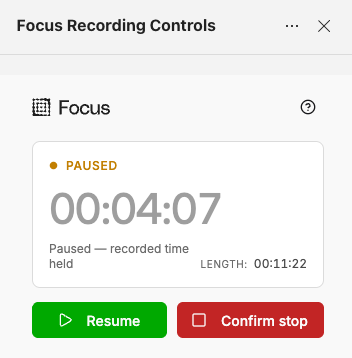
Select Stop. The button changes to Confirm stop, so a single click can't end the recording by accident.
-
Select Confirm stop. Focus shows Stopped with the total time recorded, and the controls are no longer available.
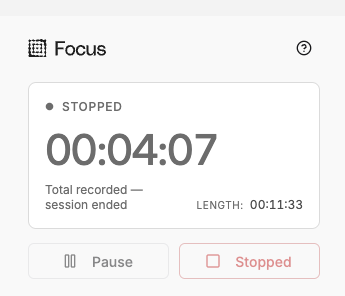
Once a recording is stopped, it can't be started again for that call or meeting. If you only need a break, use Pause and Resume instead.
7. Find your recording afterwards
When the call or meeting ends, go back to the Focus app in Teams and select Refresh under Your recordings. Once processing is complete, the recording appears with its ID, date and time, duration and contacts. Depending on your organisation's settings, it can also show conversation phases, the AI category and notes.
The Focus app follows your Teams theme. If you use Teams in dark mode, Focus switches to dark mode too, as in the list above.
To play it back, search or do anything else with it, select Launch Focus to open the full Focus portal. See Communications for what you can do there.
If a recording doesn't appear after processing, contact your administrator or support team.