Features
The features tab covers a few sections, what you see in this tab will depend on what is enabled on your account and with your current account type or SKU. All options are listed here so if you see something you would like to use but can't currently, please reach out to your account manager or support team.
Focus Features
This first section is all about Focus specific options and features. Mostly around how users will interact with the portal and communication.
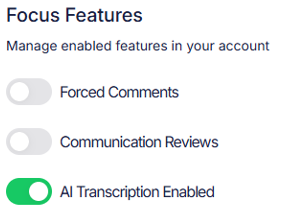
💬 Forced comments
If enabled in the admin section, forced comments will require a user to enter a reason for listening to the call before they are able to begin playback.

When selecting a call from the communications screen the plaback bar will be blocked and a comment must be added via the Add Comment button.
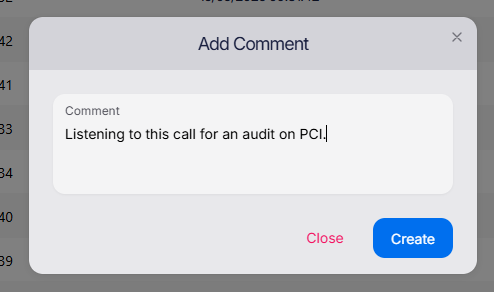
Adding a forced comment is the same as normal comments but a timestamp and tag are not able to be added as this comment must be added before playback.

Once the comment has been Created playback will begin as normal.
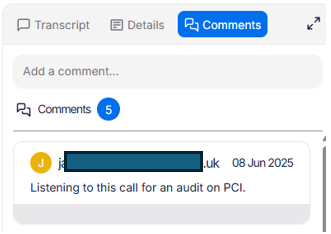
Forced comments will show within the normal comment section with the name and timestamp like a normal comment.
This is a global setting and will cause all users to enter a comments for each recording. If the same call is selected for playback again within 5 minutes a second comment is not required.
📋 Communication reviews
Communication reviews are a way to allow users to review any communication in a structured way. Think of it like a survey about the communication.
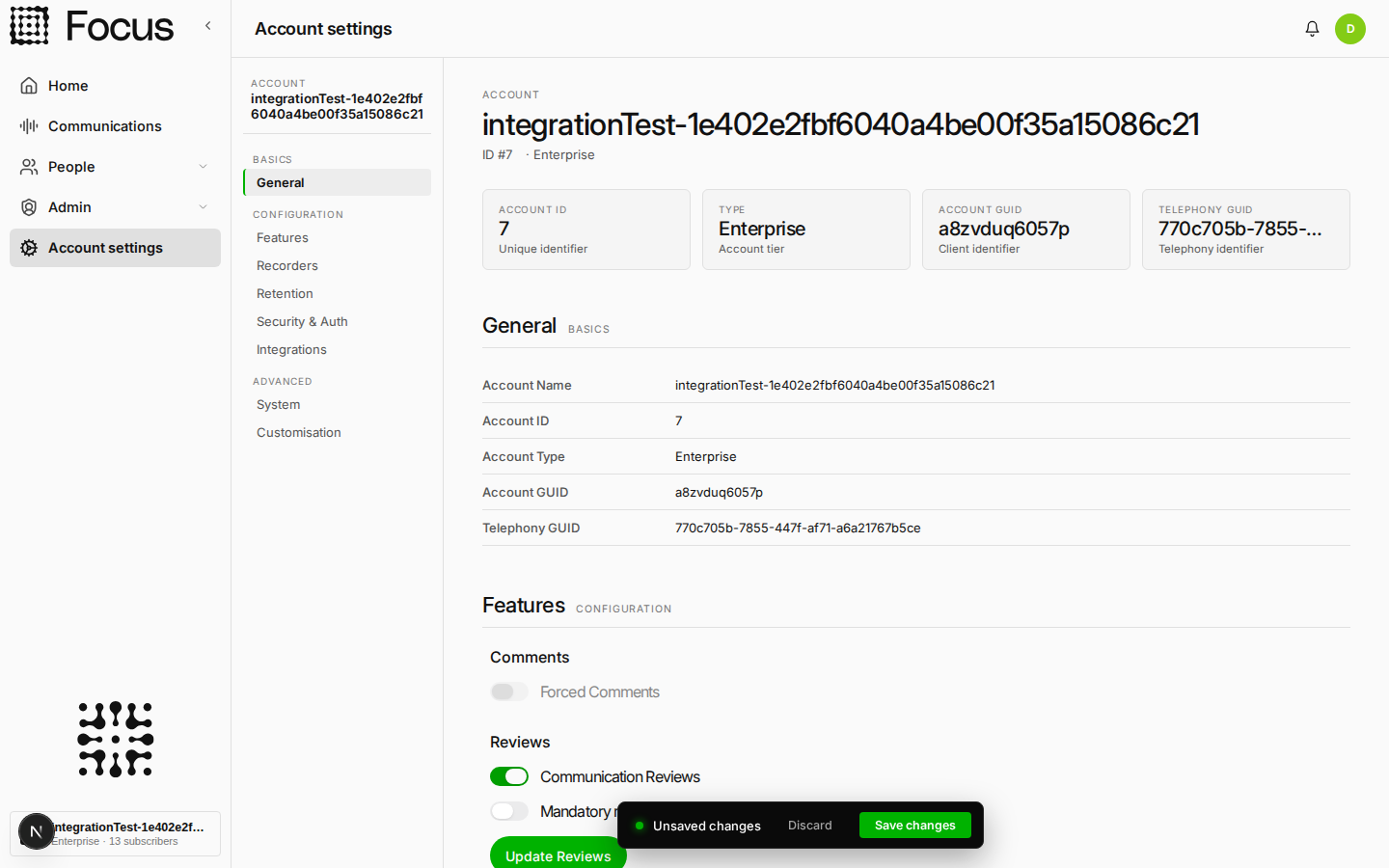
When enabled, Communication reviews can be simply Enabled or Mandatory. Mandatory means a user must submit a review before they can play a recording back.
Once enabled an Update Reviews button appears, which opens the Review Builder. You can build as many scorecards as you need and choose which are active.
Full setup, the Review Builder and scorecard design tips are covered in Communication Reviews. For how your users complete a review, see Reviews / QA.
Users with access to the reports screen can then download a report with all the scores provided across all communications.
Forced Comments and Communication Reviews are not allowed to be enabled at the same time, as they would cause confusion. If you enable both, the first one enabled will be switched off.
🤖 AI Transcription
Focus was built with AI at its heart 💖 and therefore AI transcription is included with all Focus licenses at no extra cost 🥇.
Don't get us wrong, everything works without it, but when enabled the platform comes to life with insights, analysis, follow along transcription and free text searching to name but a few. More information can be found within the Communication section of this help guide, but if your policy allows, we recommend you enable this option from day one.
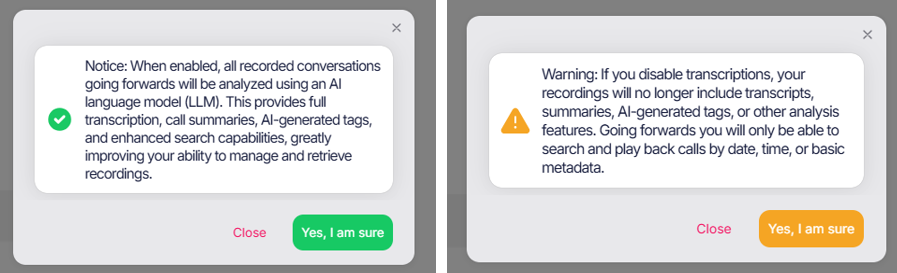
When toggled (on or off) you will be prompted to confirm the changes that will be applied to your portal and your done. If enabled you now have access to:
- Follow along transcriptions
- Automatic communication categorizations (outcomes)
- Segment detection - Skip over the "hello how was your day" part and get to the good bit
- Translations - Show both the spoken language and another language.
- Speaker detection
- Full free text searching over all communications - find names of competitors or specific product names
- Smart journey linking (coming soon)
- Sentiment (coming soon)
- Custom tags (coming soon)
- Lots more...
Network recording features
If inline network recording is enabled on your account (Mobile Phones or Fixed lines) options within this section will allow you to manage:
Announcements
Announcements let you automatically tell the people phoning or being called, by your recorded users, that the audio is being recorded. When your account is provisioned you can select one of the below options, but this can also be changed at any point via the portal.

Options are:
- None - If you wish to disable the announcements and tell users via another method, select this option.
- Beep - A single deep is played when the call starts to signify recording has started.
- This call is recorded - A voice telling the users that "This call is recorded".
- Recording - A voice telling the users that this call is "Recording".
- Recorded and Monitored - A voice telling the users that "This call is recorded and monitored".
- Custom - Custom audio files are supported for playback. If you wish to supply your own recording please log a support ticket.
The default options currently only support English but have both a Male and Female variant, other language versions can be created or supplied via the custom option.
Dynamic private calls
Focus supports lots of ways of setting any communication made to be shown as private, via endpoints settings, group settings or dynamically.
Dynamic private calls are enabled by default and allow a user to press *1 (star, followed by the number, one) on their phone keypad. This can be pressed at any point within the call and both participants will hear three beeps played onto the call to confirm. This recording will be marked as private within the Focus portal and only playable by the user that made the call and super users.
See playlists for how private calls can still be shared if required.
Teams recording features
If enabled on your account, Microsoft Teams specific recording options will be displayed within this section.
Zoom recording features
If enabled on your account, Zoom specific recording options will be displayed within this section.
Broadworks recording features
If enabled on your account, Broadworks specific recording options will be displayed within this section.