Communication Reviews
Communication reviews are a way to let your users review any communication in a structured way. Think of it like a survey about the communication. You build the scorecard, your users fill it in against calls, messages and anything else in the communications screen.
This page covers the admin side, enabling the feature and building your scorecards. For how your users actually score a call, see Reviews / QA.
Enabling the feature
Scroll down to the Features section and you'll find the two controls you need:

Toggle Communication Reviews on and press Save changes. That's the feature live. A Mandatory review pre-playback option appears alongside the toggle, which forces a user to submit a review before they can play anything back, see mandatory reviews below. Update Reviews is how you get into the Review Builder to create your scorecards.
You can move between the three states at any time without losing existing reviews or scorecards:
- Disabled - no reviews anywhere
- Enabled - reviews available on every record
- Mandatory pre-playback - a review must be submitted before playback
Forced Comments and Communication Reviews are not allowed to be enabled at the same time, as they would cause confusion. If you enable both, the first one enabled will be switched off.
Building a scorecard
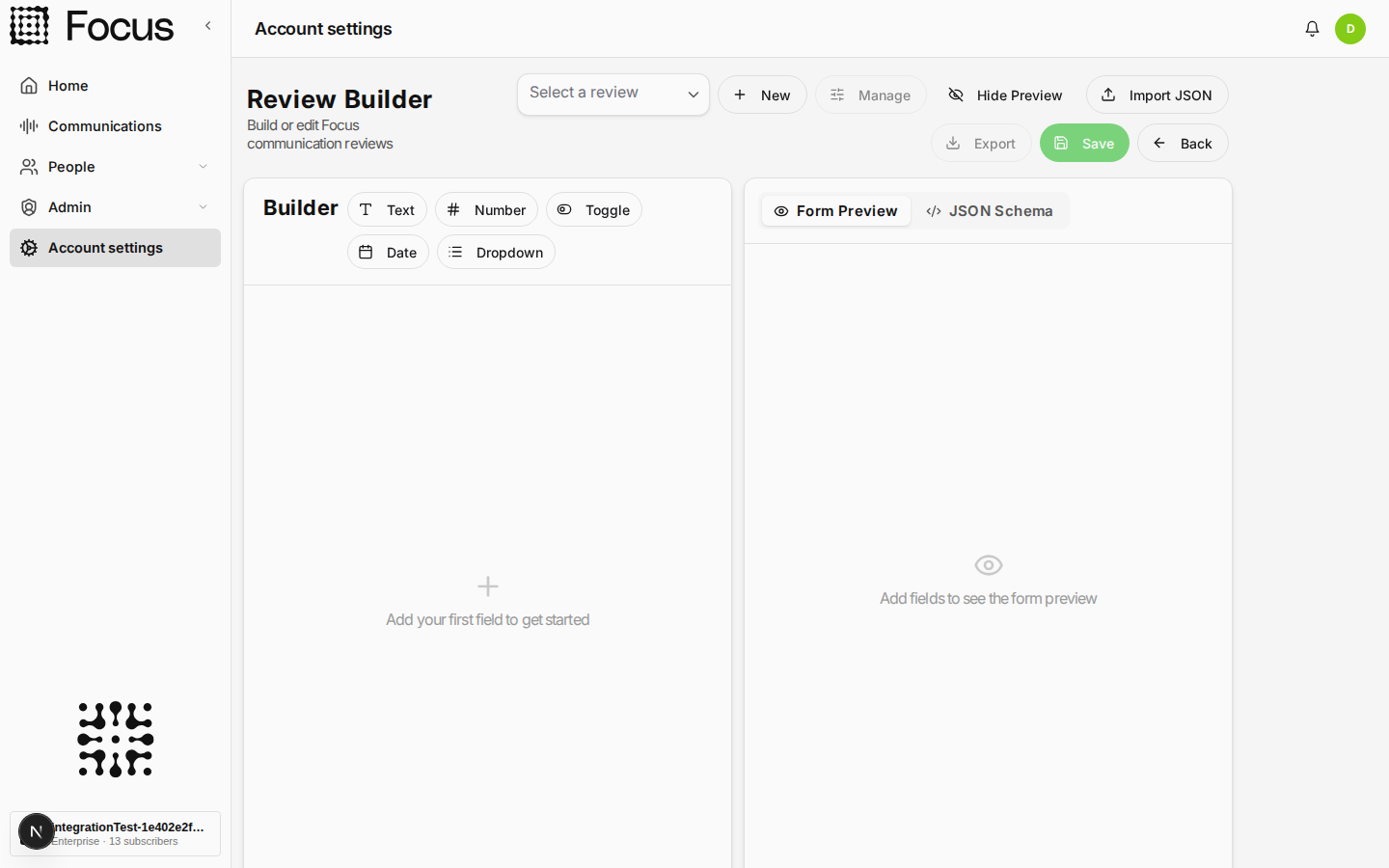
Press Update Reviews to open the Review Builder. The field palette is on the left and a live Form Preview on the right, which always shows exactly what your users will see.
Field types
There are five field types to build with:
| Type | Use it for | The user sees |
|---|---|---|
| Dropdown | Fixed choice lists, outcomes, categories, rating scales | A single-select list |
| Number | Scores and counts | A numeric input |
| Toggle | Yes/no assessments, compliance checks | A checkbox |
| Date | Follow-up and deadline dates | A date and time picker |
| Text | Free-form comments and reasons | A text box, which goes multi-line for longer descriptions |
Adding a field
Click a palette button to drop a field in, then click its Edit icon.
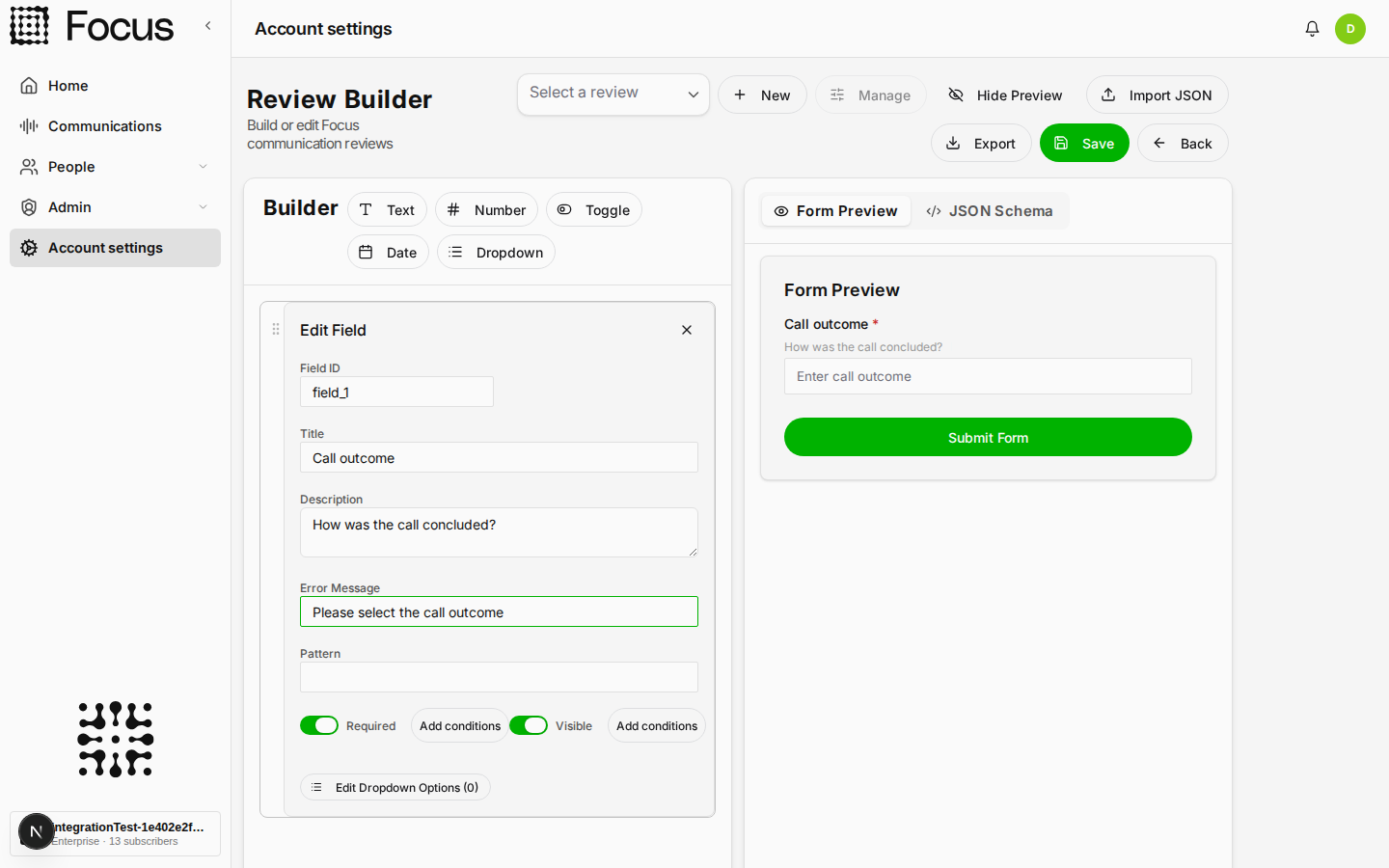
- Field ID - the stable identifier used to pick this answer out in reporting
- Title - the question your user sees
- Description - helper text under the input
- Error Message - what they see if they miss a required field
- Required - whether an answer is needed before the review can be submitted
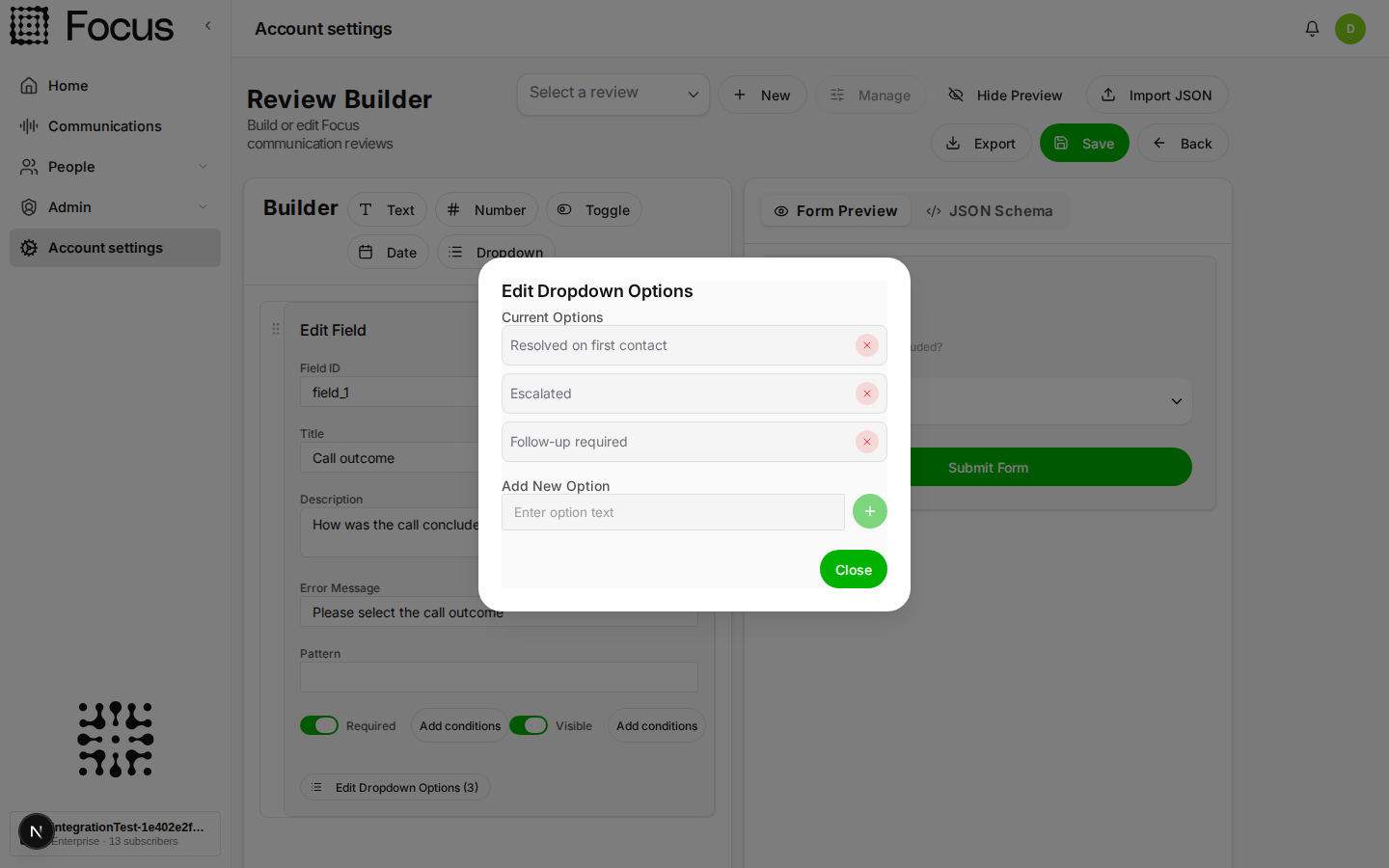
For dropdowns, press Edit Dropdown Options to build the choice list. Type each option and press Enter.
Conditional fields
Every field has Visible and Required conditions, so you can ask follow-up questions only when they're actually relevant. Press Add conditions next to Visible to show a field only when another field has a particular value.
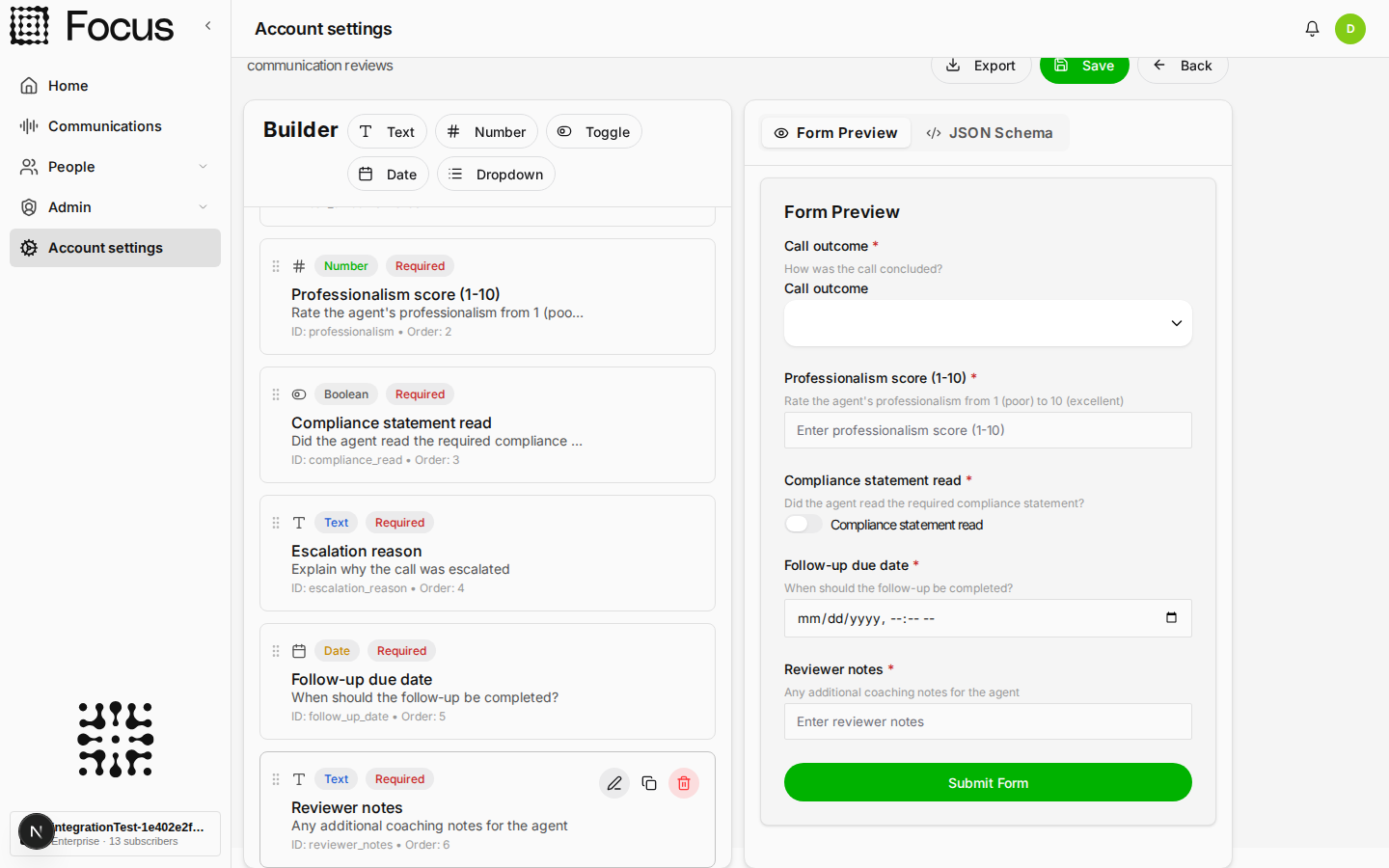
In the example below, Escalation reason only shows up when Call outcome is set to Escalated. Conditions can be combined with All (AND) or Any (OR), and the same thing works on Required if you'd rather the field always showed but only became mandatory sometimes.
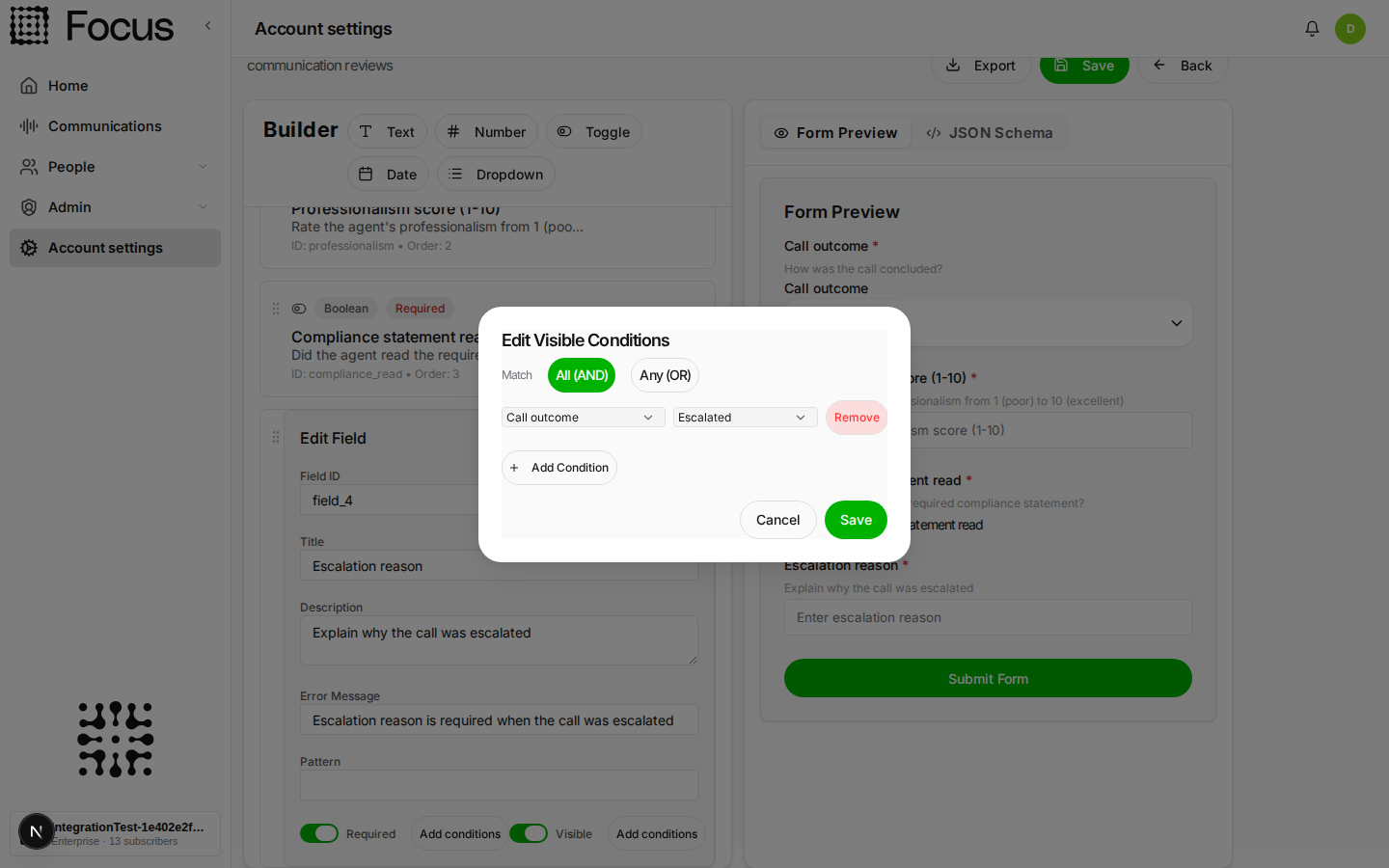
Keep adding fields until the scorecard is done. The Form Preview updates as you go and respects your conditions, so it keeps Escalation reason hidden until an escalated outcome is picked. The JSON Schema tab shows the underlying definition if you want it.
Saving it
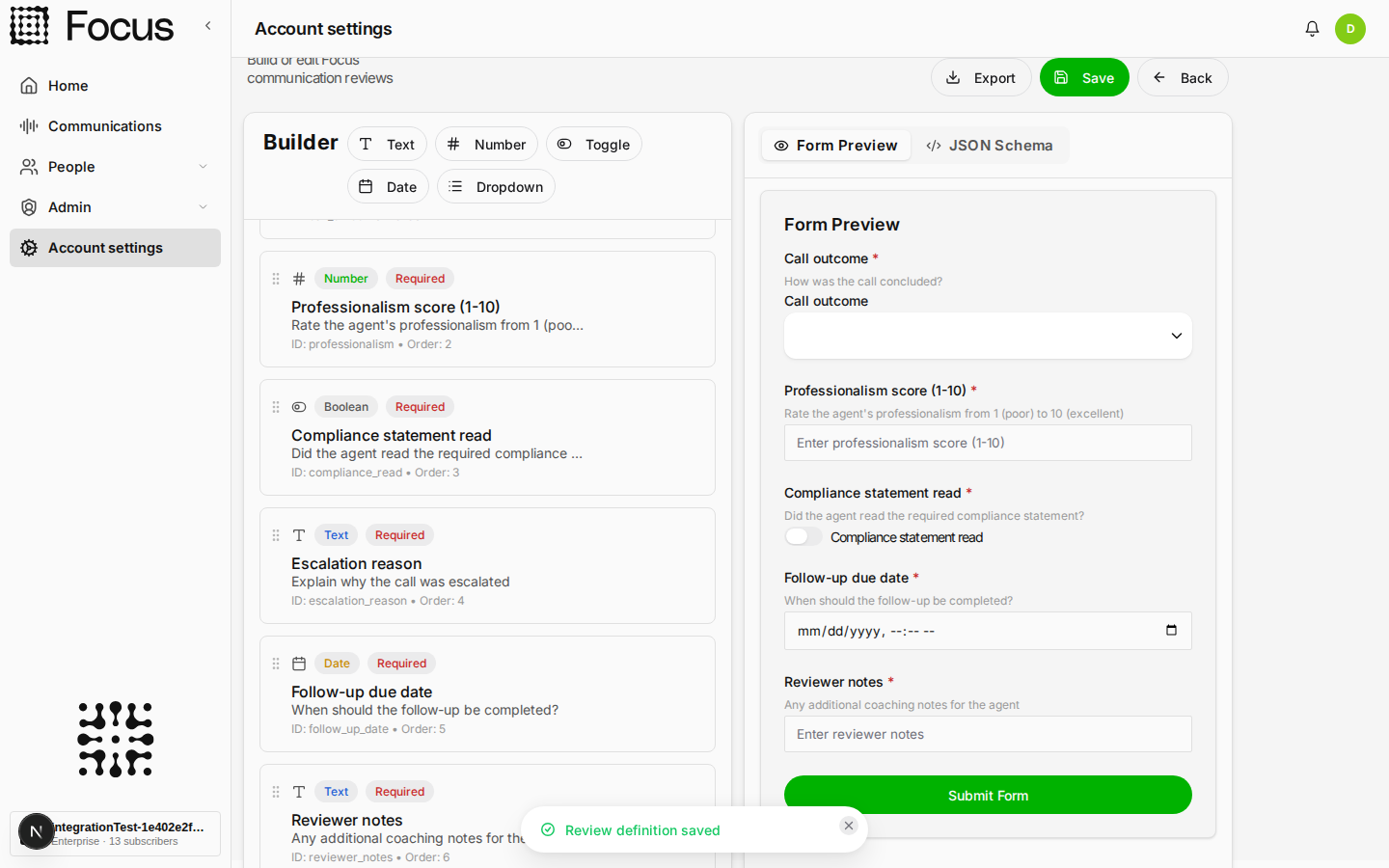
Press Save in the header.
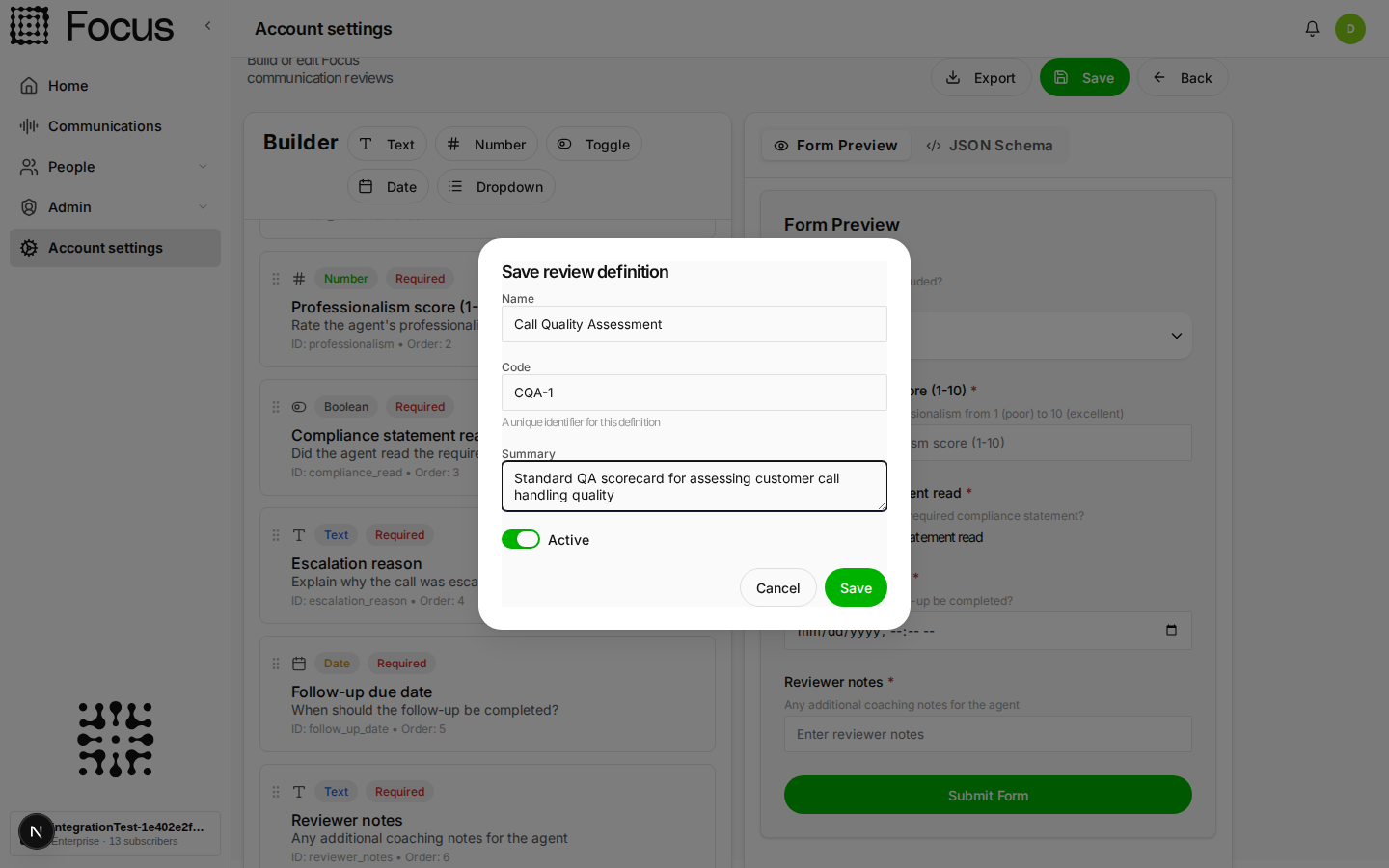
- Name - what your users see when they pick a scorecard
- Code - a unique identifier, used for reporting
- Summary - optional, also shown to your users when they pick
- Active - leave this on so it can be used straight away
Managing your scorecards
You can have as many scorecards as you need, for example one each for sales calls, support calls and compliance audits. Press Manage to see them all with their own Active switch.
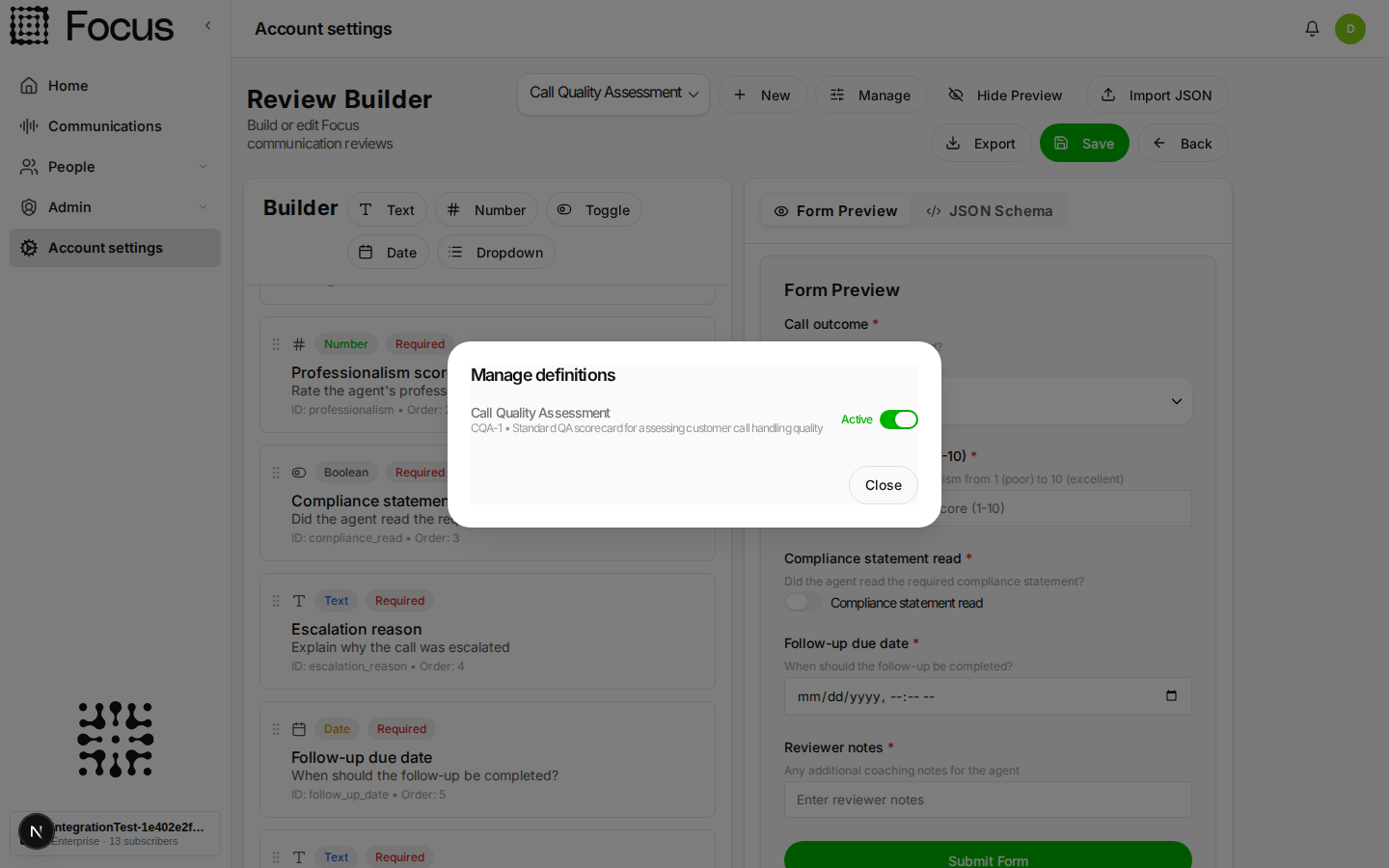
Switching a scorecard to inactive takes it out of the list your users pick from, but everything already submitted against it stays exactly where it is.
Selecting an existing scorecard in the builder and saving with the same code updates it. Change the code and you get a brand new scorecard instead. Export and Import JSON are there for backing things up or copying a scorecard between accounts.
Mandatory review before playback
Turn on Mandatory review pre-playback if you need a review-before-listen workflow. When a user opens a recording nobody has reviewed yet, playback is blocked and the panel is locked to the Reviews tab until they submit one. As soon as it's saved, playback unlocks on its own.
Tips for building good scorecards
- Keep it short. Five to eight fields keeps review time down and completion rates up.
- Dropdowns beat free text. Structured answers can be reported on, free text can't.
- Use conditions to keep the common path short. Only surface the follow-up questions when the answer that triggers them is given.
- Write the error messages properly. That message is what your user sees when they miss a required field, so make it say what's actually needed.
- Set field IDs once. They're how answers are identified in reporting, so give them meaningful names and avoid renaming them once reviews have been collected.
- Order matters. Drag fields around to match how a call actually flows: greeting, handling, outcome, then follow-up.
Reporting
Users with access to the reports screen can download a report with all the scores provided across all communications.
Your users can listen to the call while completing a review. This normally matters, as the questions tend to link directly to events happening during the communication.